
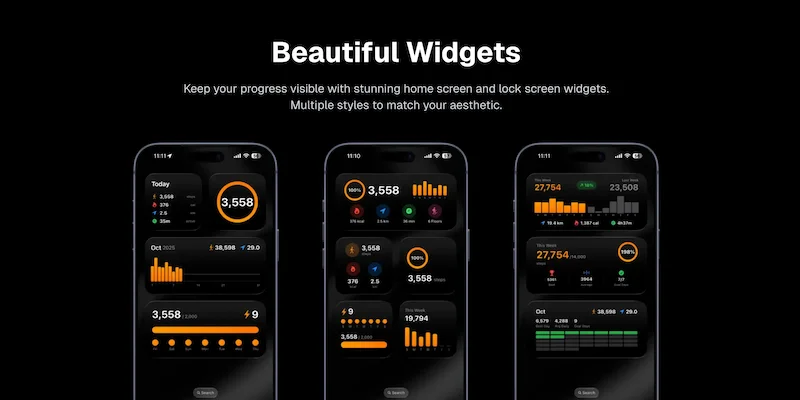
How To Use And Customize The iPhone Step Widget

Learn how to add step widgets to your home screen, customize their size and appearance, read and interpret widget data, and understand how widgets help increase daily motivation.
Step widgets put your daily activity right on your iPhone's home screen and lock screen. Instead of opening an app to check your progress, you can see your step count at a glance. This visibility is a powerful motivator that can help you walk more.
Here is everything you need to know about using and customizing step widgets on your iPhone.
How to Add the Step Widget to Your Home Screen
Adding widgets to your home screen is straightforward.
Basic Widget Setup
Follow these steps to add a step widget:
- Enter edit mode: Long-press on any empty area of your home screen until the icons start wiggling
- Open widget gallery: Tap the + button in the top left corner
- Search for widget: Type "Steps" or "Fitness" in the search bar
- Select app: Choose the step tracking app you want to use
- Choose size: Swipe through available widget sizes
- Add widget: Tap "Add Widget"
- Position widget: Drag it to your preferred location
- Exit edit mode: Tap "Done" in the top right corner
Available Widget Sources
Different apps offer step widgets:
Apple Fitness:
- Shows activity rings
- Includes steps, calories, and exercise
- Available in multiple sizes
Steps App:
- Dedicated step count display
- Beautiful animated progress ring
- Multiple size and style options
- Lock screen widgets available
Other pedometer apps:
- Various designs and features
- Check App Store for options
- Each has unique visualization
If you do not see a widget for your preferred step tracking app, make sure the app is installed and has been opened at least once. Some widgets require the app to be set up before they appear in the widget gallery.
Adding to Lock Screen (iOS 16+)
Lock screen widgets provide even quicker access:
- Long-press lock screen: Press and hold on your lock screen
- Tap Customize: Select the lock screen you want to edit
- Choose lock screen: Tap on the lock screen image
- Tap widget area: Touch the area below the time
- Add widget: Select a step widget from the list
- Position: Arrange as desired
- Tap Done: Save your changes
Lock screen widgets are smaller but visible without unlocking your phone.
Adding to Today View
The Today View is another widget location:
- Swipe right: From the home screen or lock screen, swipe right
- Scroll down: Find the "Edit" button at the bottom
- Add widgets: Tap + and add step widgets
- Arrange: Drag to reorder widgets
- Tap Done: Save changes
Today View is accessible with a swipe from anywhere.
How to Customize Size and Appearance
Widgets come in various sizes and styles.
Widget Sizes Explained
Most apps offer multiple sizes:
Small widget:
- Shows basic step count
- Minimal space usage
- Good for crowded home screens
- Limited information display
Medium widget:
- More detailed information
- May show progress ring
- Room for additional metrics
- Good balance of size and info
Large widget:
- Most comprehensive display
- Multiple metrics visible
- Charts or graphs possible
- Takes significant screen space
Extra large (iPad):
- Available on larger screens
- Maximum information density
- Multiple data points
Choosing the Right Size
Consider these factors:
Home screen space:
- How many apps do you have?
- Do you want multiple widgets?
- How prominent should steps be?
Information needs:
- Do you just want the number?
- Do you want to see progress?
- Do you need additional metrics?
Visibility:
- Larger widgets are easier to see
- Important if you check frequently
- Consider your eyesight
Steps App
FreeSteps App offers multiple widget sizes for both home screen and lock screen. The animated step ring fills as you walk, providing instant visual feedback on your progress. Choose from small, medium, or large widgets to fit your home screen layout, and add a lock screen widget to see your steps without even unlocking your phone.
Customizing Widget Appearance
Some widgets offer customization options:
To customize (if available):
- Long-press on the widget
- Tap "Edit Widget"
- Adjust available options
- Tap outside to save
Common customization options:
- Goal display (show/hide)
- Color theme
- Metric displayed
- Update frequency
Not all widgets offer customization. Check your specific app.
Arranging Widgets
Organize widgets effectively:
Placement tips:
- Put frequently checked widgets at eye level
- Group related widgets together
- Consider thumb reach for interaction
- Leave space for app icons you use
Smart Stacks:
- Stack multiple widgets in one space
- Swipe to switch between them
- iPhone can auto-rotate based on usage
- Good for saving space
Creating a Widget Stack
Combine multiple widgets:
- Long-press home screen to enter edit mode
- Drag one widget on top of another (same size)
- Stack is created automatically
- Swipe up/down to switch widgets
- Long-press stack to edit order
This lets you have multiple step widgets or combine with other widgets.
How to Read and Interpret Widget Data
Understanding widget information helps you use it effectively.
Common Widget Elements
Most step widgets display:
Step count:
- The main number showing total steps today
- Updates periodically throughout day
- Resets at midnight
Progress indicator:
- Ring, bar, or percentage
- Shows progress toward daily goal
- Fills as you walk
Goal information:
- Your daily step target
- Steps remaining
- Percentage complete
Understanding Progress Rings
Progress rings are common visualizations:
How they work:
- Empty ring = 0% of goal
- Partially filled = progress made
- Complete ring = goal reached
- Some overflow for exceeding goal
Reading the ring:
- Quarter filled = 25% of goal
- Half filled = 50% of goal
- Three-quarters = 75% of goal
- Full ring = 100% or more
Additional Metrics
Some widgets show extra information:
Distance:
- Miles or kilometers walked
- Calculated from step count
- Based on estimated stride length
Calories:
- Estimated calories burned
- From walking activity
- Based on steps and user profile
Active time:
- Minutes of movement
- Continuous activity periods
- Different from total time
Floors climbed:
- Elevation changes detected
- Requires barometer sensor
- One floor = about 10 feet
Widget data updates periodically, not in real-time. There may be a slight delay between taking steps and seeing them reflected in the widget. This is normal and helps conserve battery.
When Widgets Update
Understanding update timing:
Update frequency:
- Varies by app and widget
- Typically every 15-30 minutes
- More frequent when actively using phone
- Background updates are limited by iOS
Forcing an update:
- Open the associated app
- Widget often updates when app opens
- Some widgets update when tapped
Why updates are not instant:
- Battery conservation
- iOS limits background activity
- Designed for periodic checking, not constant monitoring
Interpreting Trends
Use widgets to understand patterns:
Morning check:
- See starting point for the day
- Plan activity based on schedule
- Set intentions for the day
Midday check:
- Assess progress
- Decide if extra walking needed
- Adjust afternoon plans
Evening check:
- See if goal is close
- Take extra steps if needed
- Celebrate if goal met
How Widgets Help Increase Daily Motivation
Visibility drives behavior change.
The Power of Visibility
Seeing your steps regularly matters:
Psychological effects:
- Constant reminder of goal
- Creates awareness of activity level
- Triggers action when behind
- Provides satisfaction when ahead
Research shows:
- Visual feedback increases activity
- Frequent checking correlates with more steps
- Goals are more likely met when visible
Creating Accountability
Widgets create passive accountability:
How it works:
- You see your progress throughout day
- Low numbers prompt action
- Cannot ignore the data
- Creates gentle pressure to move
Benefits:
- No need to remember to check
- Automatic reminders
- Builds awareness over time
- Reduces excuses
Celebrating Progress
Widgets make progress visible:
Motivating moments:
- Watching the ring fill
- Seeing numbers increase
- Reaching goal milestones
- Exceeding expectations
Emotional impact:
- Satisfaction from progress
- Pride in achievement
- Motivation to continue
- Positive reinforcement
While widgets are motivating, avoid obsessive checking. Glancing at your widget a few times per day is helpful. Checking every few minutes can create anxiety and is counterproductive.
Building Habits
Widgets support habit formation:
Cue function:
- Widget serves as visual cue
- Reminds you of walking goal
- Triggers walking behavior
- Part of habit loop
Routine reinforcement:
- Regular checking becomes routine
- Walking becomes associated with widget
- Habit strengthens over time
Reward visualization:
- Seeing progress is rewarding
- Completing goal feels good
- Positive feelings reinforce habit
Gamification Effects
Widget progress rings tap into gaming psychology:
Game-like elements:
- Progress toward goal
- Visual completion
- Daily reset creates fresh start
- Streaks in some apps
Why it works:
- Humans like completing things
- Visual progress is satisfying
- Short-term goals are motivating
- Immediate feedback is rewarding
Social Comparison
Even without sharing, widgets enable self-comparison:
Comparing to yourself:
- Yesterday's performance
- Weekly averages
- Personal records
- Trends over time
Benefits:
- Compete with yourself
- Track improvement
- Identify patterns
- Set new challenges
Troubleshooting Widget Issues
Common problems and solutions.
Widget Not Showing Data
If your widget shows no steps:
Check these settings:
- Motion & Fitness enabled (Settings > Privacy)
- App has Health access
- App has been opened recently
- Widget is connected to correct app
Try these fixes:
- Remove and re-add widget
- Restart iPhone
- Open the associated app
- Check for app updates
Widget Not Updating
If data seems stuck:
Possible causes:
- iOS background limitations
- App not running
- Low Power Mode active
- Poor connection
Solutions:
- Open the app to trigger update
- Disable Low Power Mode
- Wait for scheduled update
- Restart iPhone
Widget Disappeared
If your widget is gone:
What happened:
- iOS update may have reset widgets
- App was deleted
- Widget was accidentally removed
How to fix:
- Re-add the widget
- Reinstall app if needed
- Check widget gallery
Wrong Data Displayed
If numbers seem incorrect:
Possible issues:
- Multiple step sources conflicting
- Sync delay
- App not reading Health data
Solutions:
- Check Health app for accurate count
- Verify app permissions
- Allow time for sync
- Contact app support if persistent
The Bottom Line
Step widgets are a simple but powerful tool for staying active. By putting your step count on your home screen or lock screen, you create constant visibility that drives motivation and behavior change. The right widget setup makes checking your progress effortless and keeps your walking goals top of mind.
Key takeaways:
- Add step widgets to home screen, lock screen, or Today View
- Choose widget size based on your information needs and screen space
- Progress rings provide quick visual feedback on goal progress
- Widgets update periodically, not in real-time
- Visibility increases motivation and helps you walk more
- Customize placement and appearance to suit your preferences
- Troubleshoot issues by checking permissions and restarting
Set up your step widget today and watch your daily activity increase.
References
Free calculators for this topic
Related Posts
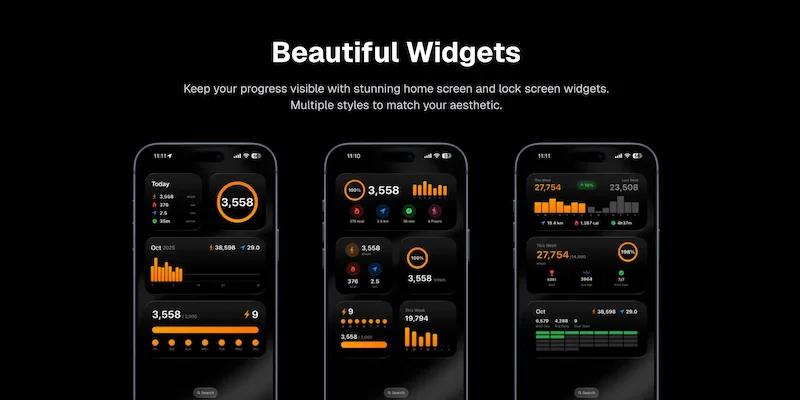
How to See Your Daily Step Count on iPhone Home Screen: Easy Widget Setup
Learn why having steps visible on your home screen increases activity. Get step-by-step instructions for setting up step widgets and lock screen widgets on iOS.

How To Count Your Steps Using An iPhone
Learn how iPhone step tracking works, how to view step data in the Health app, how to add step widgets to your home screen, and tips to improve step counting accuracy.
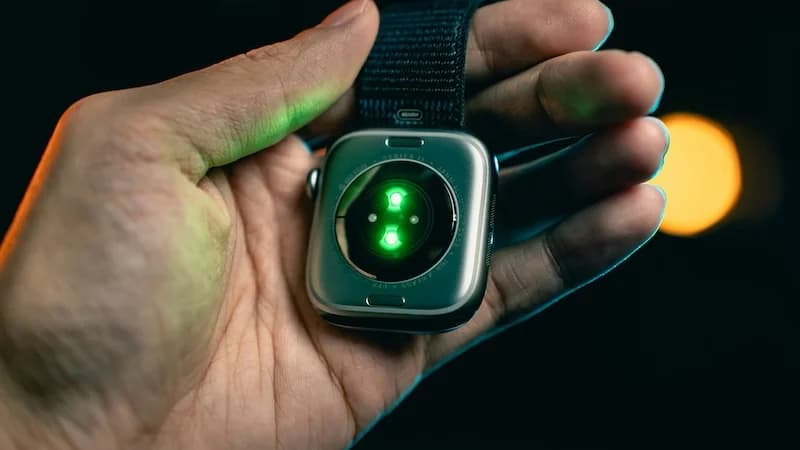
How To Use Apple Health For Accurate Step Tracking
Learn how Apple Health collects and displays steps, how to view long-term trends and averages, how to connect third-party apps, and how to improve the accuracy of Apple Health data.