
How to See Your Daily Step Count on iPhone Home Screen: Easy Widget Setup

Learn why having steps visible on your home screen increases activity. Get step-by-step instructions for setting up step widgets and lock screen widgets on iOS.
Checking your step count should take one second, not ten. When your steps are visible on your home screen, you glance at your phone and instantly know where you stand. This simple change can significantly increase your daily activity.
Here is how to set up step widgets on your iPhone for maximum motivation.
Why Having Steps on the Home Screen Increases Activity
Visibility drives behavior. When you see your step count constantly, you walk more.
The Psychology of Visible Progress
Research on goal pursuit shows that visible progress tracking increases goal achievement. When your step count is hidden inside an app:
- You forget about your goal
- You do not know if you are on track
- You lose motivation throughout the day
- You often discover too late that you are behind
When your step count is on your home screen:
- You see progress every time you check your phone
- Low numbers prompt immediate action
- High numbers reinforce positive behavior
- Your goal stays top of mind
The "Glance Effect"
The average person checks their phone 96 times per day. Each glance at a step widget is a micro-reminder to move.
Without widget: You check steps maybe once or twice a day With widget: You see steps 50+ times per day
This constant awareness creates what researchers call "ambient accountability." You are always aware of your progress without actively thinking about it.
Studies show that people who track their steps visibly walk 2,000 to 2,500 more steps per day than those who track passively. The visibility itself is a motivator.
Real-Time Feedback Loop
A home screen widget creates a feedback loop:
- You see your current step count
- If low, you feel motivated to walk
- After walking, you see the number increase
- The increase feels rewarding
- You are motivated to continue
This loop happens multiple times per day, reinforcing walking behavior.
Setting Up Step Widgets on iOS
iOS makes it easy to add widgets to your home screen. Here is how to do it.
Step 1: Choose a Step Tracking App With Widgets
Not all step tracking apps offer widgets. Before setting up, ensure your app supports home screen widgets.
Look for apps that offer:
- Multiple widget sizes (small, medium, large)
- Different widget styles (progress ring, numbers, charts)
- Lock screen widgets (iOS 16+)
- Regular updates to keep data current
Step 2: Add a Widget to Your Home Screen
-
Enter edit mode: Long-press on any empty area of your home screen until the apps start jiggling
-
Open widget gallery: Tap the + button in the top-left corner
-
Find your step app: Scroll through the list or use the search bar to find your step tracking app
-
Choose widget size: Swipe through the available sizes:
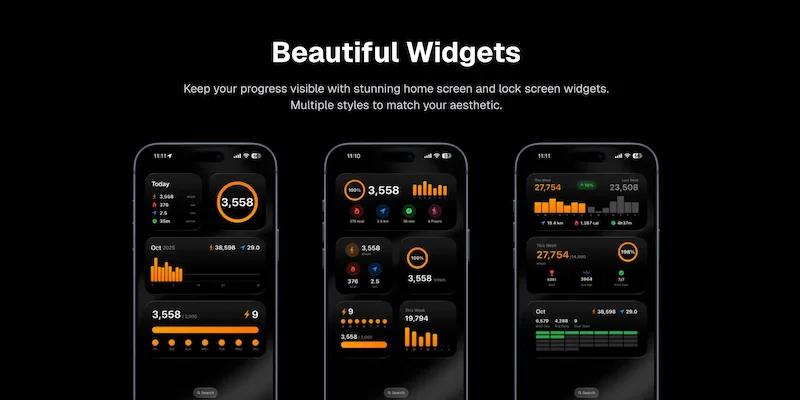
- Small: Shows step count with progress ring
- Medium: Shows steps, calories, distance, and time
- Large: Shows weekly or monthly charts
-
Add the widget: Tap "Add Widget" to place it on your home screen
-
Position the widget: Drag it to your preferred location
-
Exit edit mode: Tap "Done" in the top-right corner
Place your step widget on your main home screen where you will see it first. The more visible it is, the more effective it will be at motivating you.
Step 3: Configure Widget Settings
Some widgets allow customization:
- Long-press on the widget
- Tap "Edit Widget" if available
- Adjust settings like:
- Which data to display
- Color theme
- Goal display
Common Widget Sizes and Their Uses
Small widget (2x2):
- Best for: Quick step count check
- Shows: Step count and progress ring
- Use case: Minimal space, frequent glancing
Medium widget (4x2):
- Best for: Comprehensive daily view
- Shows: Steps, calories, distance, active time
- Use case: Seeing multiple metrics at once
Large widget (4x4):
- Best for: Weekly or monthly trends
- Shows: Charts and graphs over time
- Use case: Understanding patterns
Steps App
FreeSteps App offers multiple beautiful widget styles for your home screen. Choose from small progress rings, medium stat displays, weekly bar charts, or monthly calendars. Lock screen widgets (iOS 16+) show your steps at a glance without even unlocking your phone.
Best Widget Layouts for Quick Motivation
How you arrange your widgets affects their motivational impact.
The "First Thing You See" Layout
Place your step widget:
- On your main home screen (first page)
- In the top half of the screen
- Near apps you use frequently
This ensures you see your steps every time you unlock your phone.
The Dashboard Layout
Create a dedicated fitness page:
- Step count widget (medium or large)
- Weekly progress widget
- Streak or achievement widget
- Related apps below (Health, step app, etc.)
Swipe to this page when you want a complete fitness overview.
The Minimal Layout
If you prefer a clean home screen:
- Use a small step widget
- Place it in a widget stack (multiple widgets in one spot)
- Swipe through the stack to see different data
Widget Stack Setup
iOS allows stacking multiple widgets:
- Drag one widget on top of another (same size)
- They form a stack you can swipe through
- Enable "Smart Rotate" to show relevant widgets automatically
A fitness stack might include:
- Step count widget
- Weather widget (for planning outdoor walks)
- Calendar widget (for scheduling walks)
Using Lock Screen Widgets to Nudge More Movement
iOS 16 and later allows widgets on your lock screen, making step tracking even more visible.
Why Lock Screen Widgets Matter
You see your lock screen even more than your home screen:
- When checking the time
- When notifications arrive
- When picking up your phone
- Before unlocking
Lock screen step widgets provide constant awareness without any effort.
Types of Lock Screen Widgets
Circular widget:
- Shows progress ring
- Displays step count in center
- Visual progress toward goal
Rectangular widget:
- Shows step count and additional stats
- More detailed than circular
- Takes more lock screen space
Inline widget:
- Appears above the clock
- Shows step count in text
- Minimal and unobtrusive
How to Add Lock Screen Widgets
-
Wake your iPhone: Press the side button or tap the screen
-
Enter customization mode: Long-press on the lock screen
-
Tap "Customize": Select the lock screen you want to edit
-
Tap the widget area: Below the time, there is a rectangular area for widgets
-
Add widgets: Tap the + button and select your step app
-
Choose widget style: Select circular, rectangular, or inline
-
Confirm: Tap "Done" to save
Lock screen widgets update periodically, not in real-time. Your step count may be a few minutes behind your actual total. For the most current count, open the app or check the home screen widget.
Lock Screen Widget Strategies
Above the clock (inline):
- Subtle reminder
- Does not clutter the lock screen
- Shows step count as text
Below the clock (circular or rectangular):
- More prominent
- Shows visual progress
- Harder to ignore
Multiple widgets:
- Combine step count with other fitness data
- Create a mini dashboard on your lock screen
Troubleshooting Widget Issues
Sometimes widgets do not work as expected. Here are common issues and fixes.
Widget Shows Outdated Data
Cause: Background refresh is disabled or the app has not synced
Fix:
- Open the step tracking app to force a sync
- Enable Background App Refresh in Settings
- Wait a few minutes for the widget to update
Widget Shows Placeholder or Error
Cause: App permissions issue or app needs to be opened
Fix:
- Open the step tracking app
- Grant any requested permissions
- Remove and re-add the widget
Widget Disappeared
Cause: iOS update or app update reset widgets
Fix:
- Re-add the widget following the steps above
- Check if the app was deleted or needs updating
Widget Not Updating in Real-Time
Cause: iOS limits widget update frequency to save battery
This is normal: Widgets update periodically, not constantly. For real-time data, open the app.
Maximizing Widget Effectiveness
Get the most motivation from your step widgets with these strategies.
Check Strategically
Use your widget at key decision points:
- Morning: See where you are starting
- Midday: Check if you are on pace
- Before sitting down: Decide if you should walk first
- Evening: Calculate how many steps you need before bed
Set Meaningful Goals
Your widget shows progress toward a goal. Make sure your goal is:
- Challenging but achievable
- Based on your actual baseline
- Adjusted as you improve
A goal that is too easy or too hard reduces widget effectiveness.
Pair With Action
When you see a low step count:
- Take a quick walk immediately
- Set a reminder to walk later
- Plan your route for the day
The widget is information. Action is what increases your steps.
Create Positive Associations
When you hit your goal:
- Notice the completed progress ring
- Feel good about the achievement
- Let the visual reward reinforce the behavior
Over time, seeing a full progress ring becomes intrinsically rewarding.
The Bottom Line
Adding step widgets to your iPhone home screen and lock screen is one of the simplest ways to increase your daily activity. The constant visibility creates awareness, and awareness drives behavior.
Key takeaways:
- Visible step counts increase daily walking by 2,000+ steps
- Place widgets where you will see them most often
- Use lock screen widgets for even more visibility
- Choose widget sizes based on how much detail you want
- Check your widget at key decision points throughout the day
Set up your step widget today. Every glance is a reminder to move.
References
Free calculators for this topic
Related Posts
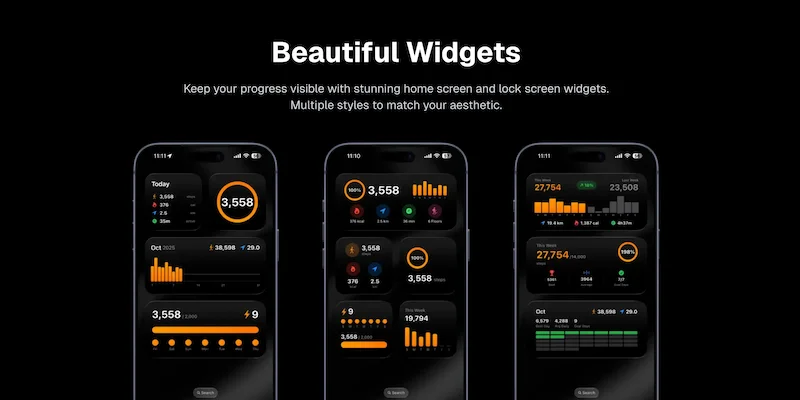
How To Use And Customize The iPhone Step Widget
Learn how to add step widgets to your home screen, customize their size and appearance, read and interpret widget data, and understand how widgets help increase daily motivation.

How To Count Your Steps Using An iPhone
Learn how iPhone step tracking works, how to view step data in the Health app, how to add step widgets to your home screen, and tips to improve step counting accuracy.
How To Use Apple Health For Accurate Step Tracking
Learn how Apple Health collects and displays steps, how to view long-term trends and averages, how to connect third-party apps, and how to improve the accuracy of Apple Health data.