
How To Use Apple Health For Accurate Step Tracking

Learn how Apple Health collects and displays steps, how to view long-term trends and averages, how to connect third-party apps, and how to improve the accuracy of Apple Health data.
Apple Health is the central hub for health and fitness data on your iPhone. It automatically tracks your steps using your phone's built-in sensors and can combine data from multiple sources. Understanding how to use Apple Health effectively helps you get accurate step tracking and meaningful insights into your activity.
Here is how to use Apple Health for accurate step tracking.
How Apple Health Collects and Displays Steps
Understanding the data flow helps you trust your step counts.
Automatic Step Collection
Your iPhone tracks steps automatically:
How it works:
- iPhone's accelerometer detects motion
- Motion coprocessor processes data continuously
- Steps counted without any app open
- Data stored in Health database
Requirements:
- iPhone must be with you
- Motion & Fitness enabled in settings
- No additional setup needed
- Works from the moment you get your phone
Accessing Your Step Data
Finding steps in Apple Health:
Quick access:
- Open Health app
- Look at Summary tab
- Steps should appear in Favorites
- Tap for more details
If steps not in Favorites:
- Open Health app
- Tap Browse tab
- Tap Activity
- Tap Steps
- Tap Add to Favorites (star icon)
Understanding the Display
What the numbers mean:
Daily view:
- Total steps for today
- Hourly breakdown chart
- Comparison to average
- Goal progress if set
Weekly view:
- Daily totals for the week
- Weekly average
- Comparison to previous weeks
- Patterns by day of week
Monthly and yearly:
- Long-term trends
- Seasonal patterns
- Progress over time
- Historical comparisons
Apple Health shows your step data in multiple time frames. The daily view shows hourly patterns, while weekly, monthly, and yearly views help you understand long-term trends and progress.
Data Sources Priority
When multiple devices count steps:
How Apple Health handles it:
- Prioritizes data sources automatically
- Apple Watch takes priority over iPhone
- Avoids double-counting
- Merges data intelligently
Viewing data sources:
- Go to Steps in Health app
- Scroll down
- Tap Data Sources & Access
- See all sources and their priority
How to View Long-Term Trends and Averages
Get meaningful insights from your step data.
Daily Averages
Understanding your typical activity:
Finding your average:
- Open Health app
- Go to Steps
- View weekly or monthly chart
- Average is displayed
What averages tell you:
- Your typical daily activity
- Whether you are improving
- Seasonal variations
- Impact of lifestyle changes
Weekly Patterns
Identify your most and least active days:
How to view:
- Go to Steps in Health app
- Select Week view
- See bar chart by day
- Note patterns
Common patterns:
- Weekends may differ from weekdays
- Monday might be low (returning to desk)
- Some days consistently higher
- Patterns reveal opportunities
Monthly and Yearly Trends
Long-term progress tracking:
Monthly view:
- See daily averages per month
- Compare months
- Seasonal changes visible
- Long-term progress clear
Yearly view:
- Full year overview
- Major trends visible
- Year-over-year comparison
- Big picture perspective
Highlights and Insights
Apple Health provides automatic insights:
What you might see:
- "Your average is up 500 steps this month"
- "You walked more on weekends"
- "Your most active day was Saturday"
- Trend arrows showing direction
Using insights:
- Celebrate improvements
- Identify areas for growth
- Understand your patterns
- Set informed goals
Check your monthly trends regularly. This longer view smooths out daily variations and shows your true progress. A single bad day does not matter when your monthly average is improving.
How to Connect Third-Party Apps
Expand Apple Health's capabilities.
Why Connect Apps
Benefits of third-party integration:
Enhanced features:
- Better visualizations
- Custom goals
- Widgets
- Achievements
- Social features
Data sharing:
- Apps can read Health data
- Apps can write to Health
- Unified data across apps
- No duplicate tracking needed
Connecting a New App
Standard connection process:
When you install a fitness app:
- App requests Health access
- Review permissions
- Approve what you want to share
- Connection established
Manual connection:
- Open Health app
- Tap your profile (top right)
- Tap Apps
- Select app to configure
- Toggle permissions on/off
Managing App Permissions
Control what apps can access:
To review permissions:
- Open Health app
- Tap profile
- Tap Apps
- See all connected apps
- Tap any app for details
Permission types:
- Read: App can view your data
- Write: App can add data to Health
- Both: Full integration
Revoking access:
- Go to app in Health settings
- Toggle off permissions
- App loses access immediately
Recommended Apps to Connect
Apps that enhance step tracking:
Step-focused apps:
- Steps App for beautiful visualization
- Pedometer++ for simple tracking
- StepBet for challenges
Comprehensive fitness:
- Strava for workouts
- Nike Run Club for running
- MyFitnessPal for nutrition
Steps App
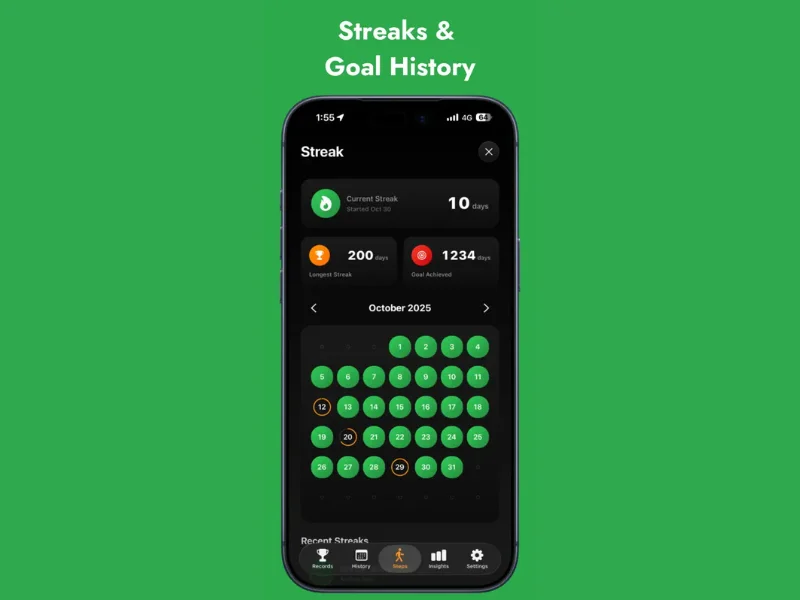
FreeSteps App integrates seamlessly with Apple Health, reading your step data and displaying it with beautiful charts and an animated progress ring. The app adds customizable goals, achievements for consistency, and home screen widgets that keep your progress visible. All your steps from Apple Health flow automatically into Steps App.
How to Improve the Accuracy of Apple Health Data
Get the most accurate step counts possible.
Carry Your Phone Consistently
Placement matters:
Best practices:
- Keep phone in pocket during walks
- Same pocket each time
- Secure placement
- Carry phone throughout the day
What to avoid:
- Leaving phone at desk
- Phone in bag or purse (less accurate)
- Inconsistent carrying habits
Enable Motion & Fitness
Ensure tracking is enabled:
Check settings:
- Open Settings
- Tap Privacy & Security
- Tap Motion & Fitness
- Enable Fitness Tracking
- Enable Health
If disabled:
- Steps will not be counted
- Historical data may be missing
- Enable immediately
Keep Software Updated
Updates improve accuracy:
Why updates matter:
- Algorithm improvements
- Bug fixes
- Better motion detection
- New features
How to update:
- Settings > General > Software Update
- Install available updates
- Keep automatic updates on
Calibrate with Apple Watch
If you have Apple Watch:
Calibration process:
- Go outdoors with good GPS
- Open Workout app on watch
- Walk or run for 20+ minutes
- Maintain steady pace
- Watch calibrates automatically
Benefits:
- More accurate distance
- Better calorie estimates
- Improved stride length
- Transfers to iPhone
Manage Data Sources
Ensure correct priority:
Check source priority:
- Health app > Steps
- Scroll to Data Sources & Access
- Tap Edit
- Reorder if needed
Priority guidelines:
- Apple Watch should be first (most accurate)
- iPhone second
- Third-party devices after
If you see unexpected step counts, check your data sources. Multiple devices counting simultaneously should not cause double-counting, but incorrect priority settings can lead to confusing data.
Input Accurate Personal Data
Your profile affects calculations:
Update your profile:
- Health app > profile
- Tap Health Details
- Enter accurate height
- Enter current weight
- Update as needed
Why it matters:
- Distance calculations use height
- Calorie estimates use weight
- Accurate data = accurate results
Review and Clean Data
Occasionally check for issues:
How to review:
- Go to Steps in Health
- Tap Show All Data
- Review entries
- Look for anomalies
What to look for:
- Duplicate entries
- Impossible numbers
- Data from unknown sources
- Gaps in data
Deleting bad data:
- Find problematic entry
- Swipe left
- Tap Delete
- Confirm
Troubleshooting Common Issues
Fix problems with step tracking.
Steps Not Counting
When steps are not appearing:
Check these settings:
- Motion & Fitness enabled
- Health app permissions
- Phone carried with you
- No Low Power Mode restrictions
Try these fixes:
- Restart iPhone
- Toggle Motion & Fitness off/on
- Check for iOS updates
- Reset Health permissions
Inaccurate Counts
When numbers seem wrong:
If undercounting:
- Carry phone in pocket, not bag
- Walk with natural gait
- Ensure phone is not in power saving mode
If overcounting:
- Check for duplicate data sources
- Review connected apps
- Look for unusual entries
Missing Historical Data
When past data disappears:
Possible causes:
- iCloud sync issues
- App deletion
- Settings changes
- Software updates
Recovery options:
- Check iCloud backup
- Restore from backup
- Contact Apple Support
- Accept data loss and move forward
Sync Issues with Apps
When apps do not show Health data:
Troubleshooting:
- Check app permissions in Health
- Force quit and reopen app
- Reinstall app if needed
- Check app-specific settings
The Bottom Line
Apple Health provides comprehensive step tracking that works automatically on your iPhone. By understanding how it collects and displays data, viewing long-term trends, connecting useful third-party apps, and following best practices for accuracy, you can rely on Apple Health as your central hub for activity tracking.
Key takeaways:
- Apple Health tracks steps automatically using your iPhone's sensors
- View daily, weekly, monthly, and yearly trends for insights
- Connect third-party apps for enhanced features and visualization
- Carry your phone consistently for accurate counting
- Keep Motion & Fitness enabled in settings
- Update software regularly for improved accuracy
- Check data sources priority if you use multiple devices
- Input accurate height and weight for better calculations
Apple Health is a powerful tool for understanding and improving your activity levels.
References
Free calculators for this topic
Related Posts
How to Use Your iPhone as a Pedometer (Without an Apple Watch)
Learn what you can track with just your iPhone, best practices for accurate step counting, recommended pedometer apps, and tips to avoid battery drain while tracking.
How To Save Battery While Tracking Steps
Learn how step tracking uses your phone sensors, how to optimize battery settings, which features drain the most power, and discover low power step tracking best practices.
How To Set Daily Step Goals On Your Phone
Learn how to set step goals in the iPhone Health app, how to set goals in other fitness apps, how to choose realistic and safe targets, and how to monitor progress each week.