
Beginner's Guide to Tracking Steps on iPhone: Setup and First Steps

Learn what counts as a step, how your iPhone detects movement, and how to set up step tracking. Find the right app and set your first realistic step goal.
Your iPhone can track your steps automatically without any extra devices. If you are new to step tracking, this guide will explain exactly how it works and help you get started.
By the end, you will understand what counts as a step, have tracking set up, and know how to set a realistic first goal.
What Counts as a Step and How Your iPhone Detects It
Understanding how step tracking works helps you use it more effectively.
The Technology Behind Step Counting
Your iPhone uses a combination of sensors to detect steps:
Accelerometer: Measures changes in movement and speed. When you walk, your phone moves in a specific pattern that the accelerometer recognizes.
Gyroscope: Detects rotation and orientation. This helps distinguish walking from other movements.
Motion coprocessor: A dedicated chip (M-series) that continuously processes motion data without draining your battery.
Machine learning algorithms: Software that analyzes sensor data to identify walking patterns and filter out non-step movements.
What Counts as a Step
A step is counted when:
- Your body moves in a walking or running pattern
- The phone detects the characteristic up-and-down motion
- The movement is sustained (not just a single bounce)
The iPhone is looking for the rhythmic pattern of walking, not just any movement.
What Does Not Count as a Step
These activities typically do not register as steps:
- Cycling (no walking motion)
- Driving over bumpy roads
- Pushing a stroller (phone may be too stable)
- Walking very slowly (motion may be too subtle)
- Carrying the phone in a bag that does not move with your body
Your iPhone needs to move with your body to count steps accurately. Keeping it in your pocket, armband, or hand works best. A stationary bag may miss steps.
Accuracy Expectations
iPhone step counting is generally accurate but not perfect:
- Typical accuracy: 90 to 95 percent of actual steps
- May undercount: Very slow walking, pushing carts, uneven terrain
- May overcount: Bumpy car rides, certain arm movements
For health and fitness purposes, this accuracy is sufficient. You do not need perfect counts to benefit from tracking.
How to Set Up Step Tracking on Your iPhone
Getting started with step tracking takes just a few minutes.
Step 1: Enable Motion and Fitness Tracking
Your iPhone tracks motion by default, but verify it is enabled:
- Open Settings
- Tap Privacy and Security
- Tap Motion and Fitness
- Ensure Fitness Tracking is turned on
If this is off, your iPhone will not count steps.
Step 2: Check the Health App
Apple's Health app collects your step data automatically:
- Open the Health app (white icon with a heart)
- Tap Browse at the bottom
- Tap Activity
- Tap Steps
You should see your step history if tracking is enabled.
Step 3: Carry Your iPhone
For accurate tracking:
- Keep your iPhone with you throughout the day
- Carry it in your pocket, armband, or hand
- Avoid leaving it on a desk or in a stationary bag
The phone needs to move with your body to count steps.
Step 4: Review Your Data
After a day or two of carrying your phone:
- Open the Health app
- Check your step count
- Look at the daily, weekly, and monthly views
- Notice patterns in your activity
The Health app shows when steps were recorded throughout the day. This helps you see your most and least active times.
Choosing the Right Step Tracking App for You
While the Health app collects data, dedicated step tracking apps provide better features.
What to Look for in a Step Tracking App
Essential features:
- Clear display of daily steps
- Progress toward your goal
- Historical data and trends
- Home screen widgets
Nice-to-have features:
- Customizable goals
- Streak tracking
- Weekly and monthly summaries
- Insights and patterns
Why Use a Dedicated App
The Health app is functional but basic. A dedicated step tracking app offers:
- Better visualization: See your progress at a glance
- Widgets: Check steps without opening an app
- Goals and motivation: Set targets and track streaks
- Insights: Understand your patterns over time
Steps App
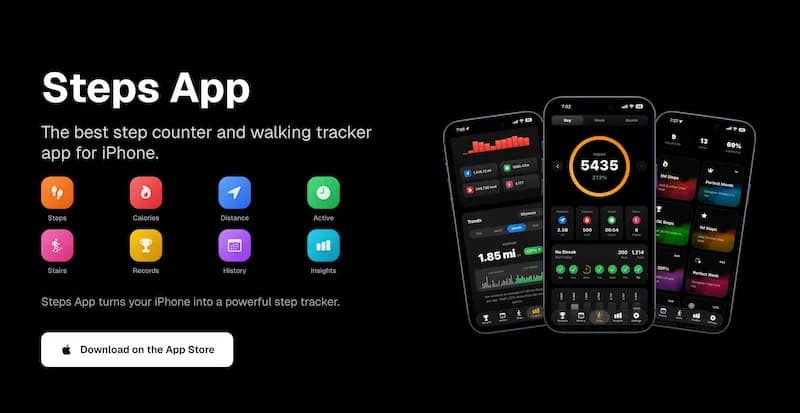
FreeSteps App is designed specifically for iPhone users who want simple, beautiful step tracking. Automatic counting works in the background, elegant widgets show your progress on your home screen, and customizable goals help you stay motivated. No complicated setup required.
Free vs Paid Apps
Free apps:
- Basic step counting
- May include ads
- Limited features
Paid apps or subscriptions:
- More features and customization
- No ads
- Better design and user experience
For most people, a well-designed free app or a low-cost paid app provides the best experience.
Syncing With Health App
Most step tracking apps sync with Apple Health:
- Your steps are recorded once (by iPhone sensors)
- Apps read this data from Health
- No double-counting or conflicts
When setting up a new app, grant it permission to read Health data.
How to Set Your First Realistic Step Goal
Setting the right goal is crucial for motivation and success.
Why Goal Setting Matters
A goal that is too high leads to:
- Constant failure
- Discouragement
- Giving up
A goal that is too low leads to:
- No challenge
- No improvement
- Boredom
The right goal is challenging but achievable most days.
Step 1: Find Your Baseline
Before setting a goal, understand your current activity:
- Track your steps for 5 to 7 days without changing behavior
- Calculate your daily average
- Note your highest and lowest days
Example:
- Day 1: 3,200 steps
- Day 2: 4,100 steps
- Day 3: 2,800 steps
- Day 4: 5,500 steps
- Day 5: 3,400 steps
- Day 6: 6,200 steps
- Day 7: 4,300 steps
- Average: 4,214 steps
Step 2: Set Your Initial Goal
For beginners, set your goal at:
Baseline + 1,500 to 2,000 steps
Using the example above:
- Baseline: 4,214 steps
- Initial goal: 5,500 to 6,000 steps
This is achievable but requires intentional walking.
Step 3: Adjust Over Time
After 2 to 4 weeks at your initial goal:
If you hit your goal 80 percent or more of days:
- Increase by 500 to 1,000 steps
If you hit your goal 50 to 80 percent of days:
- Keep the same goal for another 2 weeks
If you hit your goal less than 50 percent of days:
- Lower your goal by 500 to 1,000 steps
Do not start with 10,000 steps as your goal. This number is arbitrary and may be too high for beginners. Build up to it gradually.
Common First Goals by Activity Level
The Psychology of Goal Setting
Make it achievable: Hitting your goal feels good and builds momentum.
Allow flexibility: Some days will be higher, some lower. Focus on weekly averages.
Celebrate success: Acknowledge when you hit your goal.
Adjust without shame: Lowering a goal is smart, not failure.
Tips for Accurate Step Tracking
Get the most accurate counts with these practices.
Where to Carry Your iPhone
Best locations:
- Front or back pocket
- Armband
- Hand (while walking)
- Waist clip or belt holster
Less accurate locations:
- Purse or bag (may not move with your body)
- Backpack (too far from your center of motion)
- Stroller or cart (phone stays too stable)
When Tracking May Be Inaccurate
Be aware of situations that affect accuracy:
- Very slow walking: May not register all steps
- Pushing carts or strollers: Phone may not detect your walking motion
- Holding phone still: Steps may be missed if phone does not move
- Bumpy car rides: May register false steps
Improving Accuracy
To get the most accurate counts:
- Keep your phone in a pocket that moves with your stride
- Ensure your phone is charged (low battery may disable motion tracking)
- Update your iPhone software for the latest motion algorithms
- Walk at a normal pace (very slow walking is harder to detect)
Getting Started Today
You now have everything you need to start tracking your steps.
Quick Start Checklist
- Verify Motion and Fitness tracking is enabled in Settings
- Check that the Health app is recording your steps
- Download a step tracking app for better visualization
- Carry your iPhone with you throughout the day
- Track your baseline for one week
- Set a realistic first goal based on your baseline
Your First Week
Days 1 to 7: Just observe. Do not try to change your behavior. See what your natural step count is.
End of Week 1: Calculate your average and set your first goal.
Week 2 onward: Work toward your goal. Add intentional walks as needed.
Building the Habit
Step tracking is most valuable when it becomes a regular part of your life:
- Check your steps a few times per day
- Notice patterns in your activity
- Use the data to motivate yourself
- Adjust goals as you improve
The Bottom Line
Your iPhone is a capable step tracker right out of the box. With the right setup and a dedicated app, you can easily monitor your daily activity and work toward health goals.
Key takeaways:
- Your iPhone uses sensors and algorithms to count steps automatically
- Enable Motion and Fitness tracking in Settings
- Use a dedicated step tracking app for better features
- Find your baseline before setting a goal
- Start with a realistic goal and adjust over time
The first step is the hardest. But with your iPhone in your pocket, every step after that is automatically counted.
References
Free calculators for this topic
Related Posts

How To Count Your Steps Using An iPhone
Learn how iPhone step tracking works, how to view step data in the Health app, how to add step widgets to your home screen, and tips to improve step counting accuracy.
How to Use Your iPhone as a Pedometer (Without an Apple Watch)
Learn what you can track with just your iPhone, best practices for accurate step counting, recommended pedometer apps, and tips to avoid battery drain while tracking.
How To Track Steps Without Using A Smartphone
Discover the best standalone pedometers to use, how fitness trackers can replace smartphones, how to manually track steps if needed, and when combining devices makes sense.