

How To Count Your Steps Using An iPhone

Learn how iPhone step tracking works, how to view step data in the Health app, how to add step widgets to your home screen, and tips to improve step counting accuracy.
Your iPhone is a powerful step counter that you carry everywhere. It automatically tracks your steps throughout the day without any extra devices or subscriptions. Understanding how to access and use this data can help you stay active and reach your fitness goals.
Here is everything you need to know about counting steps on your iPhone.
How iPhone Step Tracking Works
Your iPhone uses sophisticated technology to count your steps accurately.
The Motion Sensors
iPhones contain multiple sensors that detect movement:
Accelerometer:
- Measures acceleration in three dimensions
- Detects the up-and-down motion of walking
- Identifies the rhythm of your gait
- Primary sensor for step counting
Gyroscope:
- Measures rotational movement
- Helps distinguish walking from other activities
- Improves accuracy of step detection
- Works together with accelerometer
Barometer (newer models):
- Measures atmospheric pressure
- Detects elevation changes
- Counts floors climbed
- Adds context to step data
The Motion Coprocessor
iPhones have a dedicated chip for motion processing:
What it does:
- Continuously monitors motion sensors
- Processes data without using main processor
- Extremely power-efficient
- Works even when phone is locked
Benefits:
- Minimal battery impact
- Always-on tracking
- No need to start or stop recording
- Accurate 24/7 monitoring
The motion coprocessor uses very little battery power because it is designed specifically for low-power sensor processing. Step tracking typically uses less than 1% of daily battery.
How Steps Are Detected
The algorithm identifies steps through pattern recognition:
Step detection process:
- Sensors detect movement patterns
- Algorithm looks for walking signature
- Filters out non-walking movements
- Counts confirmed steps
- Data stored in Health app
What counts as a step:
- Must match walking or running pattern
- Requires consistent rhythm
- Filters out random movements
- Distinguishes from driving or riding
Automatic vs. Manual Tracking
iPhone step counting is fully automatic:
Automatic tracking:
- Works in background
- No app needs to be open
- Phone just needs to be with you
- Data syncs to Health app
Where to carry your phone:
- Pocket (front or back)
- Bag or purse (less accurate)
- Armband
- Hand (while walking)
For best accuracy, keep your phone in a pocket where it moves with your body.
How to View Step Data Inside the Health App
The Health app is your central hub for step data.
Finding the Health App
Location:
- Pre-installed on all iPhones
- White icon with red heart
- Cannot be deleted
- Found in your app library if not on home screen
Viewing Today's Steps
Quick view:
- Open Health app
- Look at Summary tab (default view)
- Steps should appear in Favorites
- Tap for more details
If steps are not in Favorites:
- Scroll down in Summary
- Find "Steps" in the list
- Tap the star to add to Favorites
- Now appears at top of Summary
Exploring Step Details
Tap on Steps to see detailed information:
Daily view:
- Hourly breakdown
- Total for the day
- Comparison to average
- Graph visualization
Weekly view:
- Daily totals for the week
- Weekly average
- Trend compared to previous weeks
- Day-by-day comparison
Monthly view:
- Daily averages
- Monthly total
- Long-term trends
- Month-over-month comparison
Yearly view:
- Monthly averages
- Yearly total
- Seasonal patterns
- Year-over-year comparison
Swipe left or right on the graphs to see previous days, weeks, or months. This helps you understand your activity patterns over time.
Understanding the Data
What you will see:
- Step count numbers
- Bar graphs showing activity
- Averages and totals
- Data sources (iPhone, Apple Watch, apps)
Useful metrics:
- Daily average
- Best days
- Trends (increasing or decreasing)
- Time of day patterns
Viewing Walking and Running Distance
Steps are converted to distance:
Finding distance data:
- In Health app, go to Browse tab
- Tap Activity
- Select "Walking + Running Distance"
- View daily, weekly, monthly data
How distance is calculated:
- Based on step count
- Adjusted for stride length
- Calibrated over time
- More accurate with Apple Watch
Viewing Flights Climbed
If your iPhone has a barometer:
Finding floors data:
- In Health app, go to Browse tab
- Tap Activity
- Select "Flights Climbed"
- One flight equals about 10 feet of elevation
How to Add Step Widgets to the Home Screen
Widgets let you see your steps without opening any app.
Adding the Fitness Widget
Apple provides a built-in Fitness widget:
Steps to add:
- Long-press on home screen until icons wiggle
- Tap the + button (top left corner)
- Search for "Fitness"
- Choose widget size
- Tap "Add Widget"
- Position where you want it
- Tap "Done"
Widget sizes:
- Small: Shows summary ring
- Medium: Shows activity details
- Large: Shows comprehensive data
Using Third-Party Step Widgets
Many apps offer step widgets with more features:
Steps App widget example:
- Download Steps App from App Store
- Long-press on home screen
- Tap + button
- Search for "Steps"
- Choose from available widget sizes
- Add and position
Widget options may include:
- Current step count
- Progress toward goal
- Visual progress ring
- Daily trend
Steps App
FreeSteps App offers beautiful, customizable widgets that display your step count right on your home screen and lock screen. Choose from multiple sizes and styles to see your daily progress at a glance. The animated step ring fills as you walk, providing instant motivation throughout the day.
Lock Screen Widgets (iOS 16+)
Add step widgets to your lock screen:
Steps to add:
- Long-press on lock screen
- Tap "Customize"
- Select lock screen
- Tap widget area
- Choose step widget
- Tap "Done"
Benefits:
- See steps without unlocking
- Quick glance motivation
- Always visible
- Multiple widget options
Widget Tips
Best practices:
- Place on main home screen
- Choose size that fits your needs
- Update regularly (widgets refresh periodically)
- Use multiple widgets for different data
Tips to Improve Step Counting Accuracy
Get the most accurate step count with these strategies.
Phone Placement Matters
Where you carry your phone affects accuracy:
Best locations:
- Front pants pocket: Most accurate
- Back pants pocket: Very accurate
- Jacket pocket: Good accuracy
- Armband: Good for exercise
Less accurate locations:
- Loose bag or purse: May miss steps
- Backpack: Often inaccurate
- Held loosely in hand: Variable
Why placement matters:
- Phone needs to move with your body
- Sensors detect your walking rhythm
- Loose placement creates irregular motion
- Consistent placement improves accuracy
Ensure Motion & Fitness is Enabled
Check that tracking is turned on:
Steps to verify:
- Open Settings
- Tap Privacy & Security
- Tap Motion & Fitness
- Ensure "Fitness Tracking" is ON
- Ensure "Health" is ON
If these are off, your iPhone will not count steps.
Calibrate with Apple Watch (if available)
Apple Watch improves iPhone accuracy:
How calibration works:
- Watch has additional sensors
- GPS provides distance data
- Stride length is calculated
- Data improves iPhone estimates
Calibration walk:
- Wear Apple Watch
- Walk outdoors for 20+ minutes
- Maintain steady pace
- GPS calibrates stride length
Walk Naturally
Your walking style affects counting:
For best accuracy:
- Walk at normal pace
- Maintain consistent rhythm
- Avoid shuffling
- Let arms swing naturally
What may cause undercounting:
- Very slow walking
- Pushing a cart or stroller
- Walking on treadmill (sometimes)
- Unusual gait patterns
If you consistently feel your step count is wrong, check that Motion & Fitness tracking is enabled in Settings. This is the most common cause of missing step data.
Keep iPhone Updated
Software updates improve accuracy:
Why updates matter:
- Apple improves algorithms
- Bug fixes for tracking issues
- Better sensor utilization
- New features added
How to update:
- Settings > General > Software Update
- Download and install available updates
- Keep automatic updates enabled
Understand Limitations
No step counter is perfect:
iPhone may miss:
- Steps when phone is stationary
- Very slow walking
- Some indoor walking
- Steps while pushing objects
iPhone may overcount:
- Driving on bumpy roads (rare)
- Certain repetitive motions
Overall accuracy:
- Generally within 5-10% of actual steps
- Good enough for health tracking
- Consistency matters more than perfection
Compare Data Sources
If you use multiple devices:
Potential data sources:
- iPhone
- Apple Watch
- Third-party apps
- Fitness trackers
Health app handling:
- Avoids double-counting
- Prioritizes most accurate source
- Combines data intelligently
- Shows unified step count
Troubleshooting Common Issues
Solutions for step tracking problems.
Steps Not Showing
Check these settings:
- Motion & Fitness enabled (Settings > Privacy)
- Health app has permission
- iPhone not in Low Power Mode (can affect tracking)
- Restart iPhone
Steps Seem Inaccurate
Try these fixes:
- Carry phone in pocket, not bag
- Walk naturally
- Check for software updates
- Restart iPhone to reset sensors
Data Not Syncing
If steps are not appearing:
- Check internet connection
- Ensure iCloud sync is enabled
- Verify Health app permissions
- Wait a few minutes (sync can delay)
Widget Not Updating
Widget troubleshooting:
- Remove and re-add widget
- Check app permissions
- Ensure app is updated
- Restart iPhone
The Bottom Line
Your iPhone is a capable step counter that works automatically in the background. By understanding how to access your step data in the Health app, adding convenient widgets, and optimizing accuracy through proper phone placement, you can effectively track your daily activity without any additional devices.
Key takeaways:
- iPhone uses motion sensors and a dedicated coprocessor to count steps
- The Health app stores all your step data with detailed breakdowns
- Widgets provide quick access to your step count on home and lock screens
- Carrying your phone in a pocket provides the best accuracy
- Ensure Motion & Fitness tracking is enabled in Settings
- Keep your iPhone updated for the best tracking performance
Start paying attention to your step count today. Your iPhone is already tracking them.
References
Free calculators for this topic
Related Posts
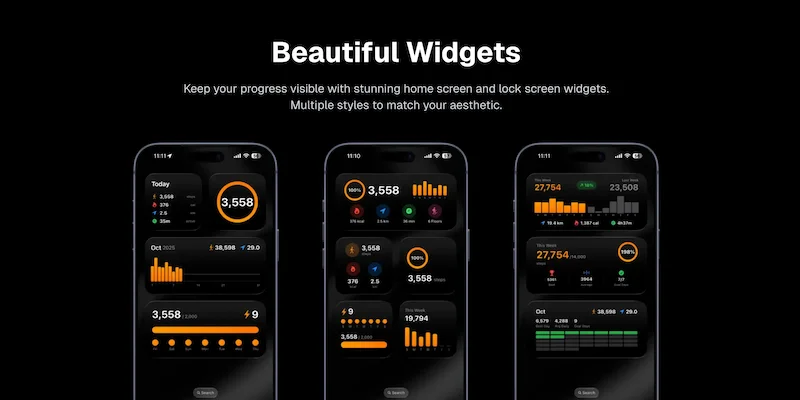
How To Use And Customize The iPhone Step Widget
Learn how to add step widgets to your home screen, customize their size and appearance, read and interpret widget data, and understand how widgets help increase daily motivation.
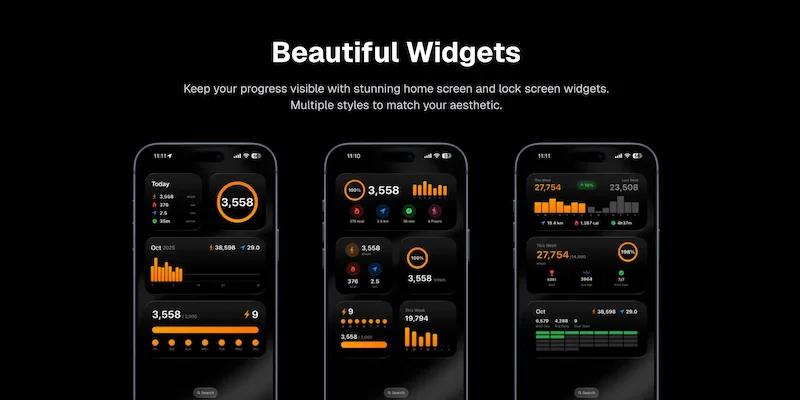
How to See Your Daily Step Count on iPhone Home Screen: Easy Widget Setup
Learn why having steps visible on your home screen increases activity. Get step-by-step instructions for setting up step widgets and lock screen widgets on iOS.
How to Use Your iPhone as a Pedometer (Without an Apple Watch)
Learn what you can track with just your iPhone, best practices for accurate step counting, recommended pedometer apps, and tips to avoid battery drain while tracking.