
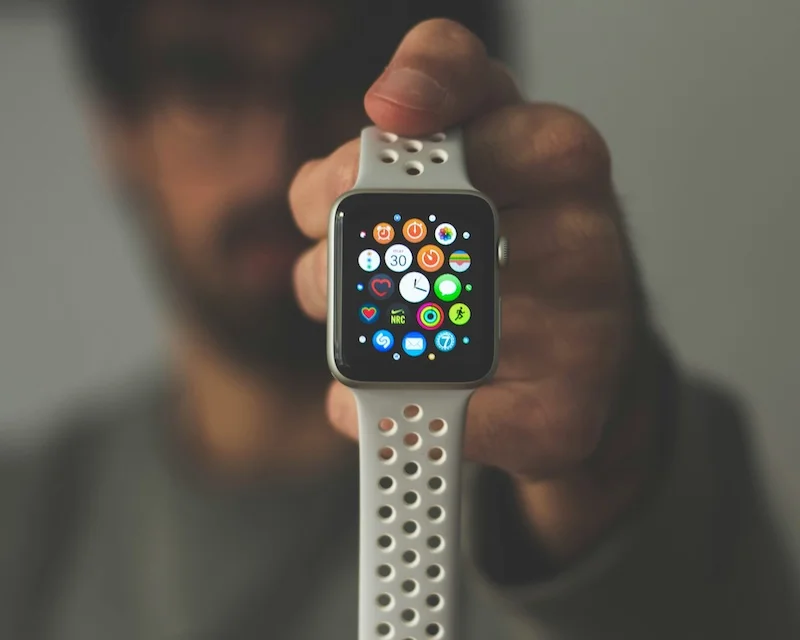
How To Sync Step Data Between Your Phone And Smartwatch

Learn how to pair your smartwatch correctly, understand how step data syncing works, troubleshoot common syncing issues, and ensure consistent and accurate tracking.
Wearing both a smartwatch and carrying a smartphone means you have two devices counting your steps. Getting them to work together properly ensures you see accurate, unified data without confusion or double-counting. Understanding how syncing works helps you get the most from both devices.
Here is how to sync step data between your phone and smartwatch.
How to Pair Your Smartwatch Correctly
Proper initial setup is essential for reliable syncing.
Apple Watch Pairing
Setting up Apple Watch with iPhone:
Requirements:
- iPhone 8 or later (for latest watchOS)
- iOS 17 or later (for latest features)
- Bluetooth enabled
- Wi-Fi connection
- Apple ID
Pairing steps:
- Turn on Apple Watch (hold side button)
- Bring iPhone close to watch
- Wait for pairing screen on iPhone
- Tap Continue when prompted
- Center watch face in iPhone viewfinder
- Follow on-screen instructions
- Sign in with Apple ID
- Configure settings
- Wait for sync to complete
Important settings:
- Enable Health app access
- Allow Fitness Tracking
- Enable background app refresh
- Keep Bluetooth on
Fitbit Pairing
Setting up Fitbit with phone:
Requirements:
- Fitbit app installed
- Fitbit account
- Bluetooth enabled
- Location services on
Pairing steps:
- Open Fitbit app
- Tap profile icon
- Tap Set Up a Device
- Select your device model
- Follow on-screen instructions
- Enter code if prompted
- Complete setup
Samsung Galaxy Watch Pairing
Setting up Galaxy Watch:
Requirements:
- Galaxy Wearable app
- Samsung account
- Bluetooth enabled
- Compatible phone
Pairing steps:
- Install Galaxy Wearable app
- Turn on watch
- Open app and tap Start
- Select your watch
- Confirm pairing code
- Complete setup
Garmin Watch Pairing
Setting up Garmin devices:
Requirements:
- Garmin Connect app
- Garmin account
- Bluetooth enabled
Pairing steps:
- Install Garmin Connect
- Create or sign in to account
- Tap menu, then Garmin Devices
- Tap Add Device
- Select device type
- Follow pairing instructions
Keep your phone close to your smartwatch during initial setup. The first sync can take several minutes to transfer all settings and data. Do not interrupt this process.
How Step Data Syncing Works Behind the Scenes
Understanding the process helps troubleshoot issues.
Continuous Data Collection
Both devices collect data independently:
Smartwatch collection:
- Accelerometer detects wrist movement
- Gyroscope tracks orientation
- Heart rate sensor adds context
- Data stored locally on watch
Smartphone collection:
- Accelerometer in phone
- Motion coprocessor processes data
- Stored in Health database
- Runs continuously in background
The Syncing Process
How data moves between devices:
Bluetooth connection:
- Primary sync method
- Low energy Bluetooth
- Maintains persistent connection
- Syncs automatically when connected
Wi-Fi sync:
- Used for larger data transfers
- Faster than Bluetooth
- Requires same network
- Used for app updates
Cloud sync:
- Data uploaded to servers
- Accessible across devices
- Enables web dashboard access
- Backup for local data
Data Deduplication
Preventing double-counting:
The problem:
- Both devices count steps
- Same steps counted twice
- Total would be inflated
The solution:
- Health platforms detect overlap
- Prioritize one data source
- Merge data intelligently
- Show single accurate count
How Apple Health handles it:
- Prefers Apple Watch data when available
- Uses iPhone data when watch not worn
- Timestamps prevent duplication
- Seamless transition between sources
Sync Frequency
When syncing occurs:
Real-time sync:
- When devices are connected
- Continuous background updates
- Minimal delay
Periodic sync:
- Regular intervals (varies by device)
- Every few minutes typically
- More frequent during activity
Manual sync:
- Pull to refresh in apps
- Open app to trigger sync
- Force sync in settings
Apple Watch syncs with iPhone almost continuously when they are in range. You might notice a brief delay of a few seconds to a minute before watch data appears in the Health app on your phone.
Common Syncing Issues and Fixes
Troubleshoot when syncing is not working.
Issue: Data Not Syncing
When steps are not transferring:
Check Bluetooth:
- Open Settings on phone
- Verify Bluetooth is on
- Check that watch is connected
- Toggle Bluetooth off and on
Check connection:
- Bring devices close together
- Open watch app on phone
- Verify connected status
- Wait a few minutes
Restart devices:
- Restart smartwatch
- Restart phone
- Wait for reconnection
- Check if syncing resumes
Issue: Duplicate Step Counts
When seeing inflated numbers:
Check data sources:
- Open Health app
- Go to Steps
- Tap Show All Data
- Look for duplicate entries
Adjust priority:
- Go to Health app
- Tap Browse, then Steps
- Tap Data Sources & Access
- Reorder priority list
Remove duplicate source:
- Identify redundant app
- Revoke Health access
- Or delete duplicate entries
Issue: Watch Not Appearing in App
When watch seems disconnected:
Re-pair the watch:
- Unpair from phone
- Reset watch if needed
- Pair again from scratch
- Restore from backup if available
Check for updates:
- Update phone software
- Update watch software
- Update companion app
- Retry connection
Issue: Delayed Syncing
When data takes too long to appear:
Check background refresh:
- Settings > General > Background App Refresh
- Ensure enabled for fitness apps
- Check for Low Power Mode
- Disable if active
Force sync:
- Open fitness app
- Pull down to refresh
- Wait for sync
- Check data
Network issues:
- Check Wi-Fi connection
- Try cellular data
- Move to better signal area
- Wait and retry
Issue: Missing Historical Data
When past data disappears:
Check cloud backup:
- Verify cloud sync is enabled
- Check account settings
- Look for data in web dashboard
Restore from backup:
- Check for device backup
- Restore if data was backed up
- Contact support if needed
Before unpairing your smartwatch, make sure your data is backed up. Unpairing can sometimes result in data loss if not done carefully. Apple Watch creates a backup automatically when you unpair.
How to Ensure Consistent and Accurate Tracking
Best practices for reliable data.
Wear Your Watch Consistently
Consistent wear improves data:
Best practices:
- Wear watch during all waking hours
- Same wrist each day
- Snug but comfortable fit
- Sensor against skin
When to remove:
- Charging (obviously)
- Water activities (if not waterproof)
- Skin irritation (give skin a break)
Keep Devices Updated
Updates improve syncing:
Why updates matter:
- Bug fixes
- Improved algorithms
- Better connectivity
- New features
How to update:
- Enable automatic updates
- Check for updates weekly
- Install promptly
- Update both devices
Maintain Good Connectivity
Strong connections ensure syncing:
Bluetooth tips:
- Keep devices within range
- Minimize interference
- Avoid crowded Bluetooth environments
- Restart if connection drops
Wi-Fi tips:
- Connect to reliable network
- Use same network for both devices
- Check router if issues persist
Choose Primary Data Source
Decide which device to trust:
For Apple users:
- Apple Watch is typically most accurate
- Health app prioritizes watch data
- iPhone fills gaps when watch not worn
For other ecosystems:
- Choose your most-worn device
- Set as primary in app settings
- Be consistent
Use Compatible Apps
Apps that work well together:
Apple ecosystem:
- Apple Health as central hub
- Apple Fitness+ for workouts
- Third-party apps that sync with Health
Cross-platform:
- Apps that sync with multiple services
- Cloud-based platforms
- Universal compatibility

Steps App
FreeSteps App seamlessly integrates with Apple Health, automatically syncing your step data whether it comes from your iPhone or Apple Watch. The app displays unified, accurate step counts without duplication. Your data flows effortlessly between devices, and beautiful widgets show your progress in real-time.
Monitor Data Quality
Regularly check your data:
Weekly review:
- Check for gaps in data
- Look for unusual spikes
- Verify counts seem reasonable
- Note any sync issues
Troubleshoot promptly:
- Address issues when noticed
- Do not let problems persist
- Keep devices working together
Platform-Specific Tips
Advice for different ecosystems.
Apple Watch + iPhone
Optimizing Apple ecosystem:
Best practices:
- Use Apple Health as hub
- Enable all Health permissions
- Keep both devices updated
- Use iCloud for backup
Troubleshooting:
- Check Health app permissions
- Verify Fitness Tracking enabled
- Restart both devices
- Re-pair if needed
Fitbit + iPhone/Android
Optimizing Fitbit experience:
Best practices:
- Keep Fitbit app running
- Enable all-day sync
- Use Fitbit Premium for insights
- Connect to Apple Health or Google Fit
Troubleshooting:
- Force sync in app
- Check Bluetooth connection
- Restart tracker
- Reinstall app if needed
Samsung Galaxy Watch + Phone
Optimizing Samsung ecosystem:
Best practices:
- Use Samsung Health
- Enable auto-sync
- Connect to Google Fit
- Keep apps updated
Troubleshooting:
- Check Galaxy Wearable connection
- Verify Samsung Health permissions
- Restart watch and phone
Garmin + Phone
Optimizing Garmin experience:
Best practices:
- Use Garmin Connect app
- Enable background sync
- Connect to Apple Health or Google Fit
- Sync after activities
Troubleshooting:
- Force sync in app
- Check Bluetooth pairing
- Update Garmin Connect
The Bottom Line
Syncing step data between your phone and smartwatch should be seamless once set up correctly. Proper pairing, understanding how syncing works, and knowing how to troubleshoot common issues keeps your data accurate and unified. Focus on consistent wear, regular updates, and good connectivity for the best experience.
Key takeaways:
- Pair devices carefully following manufacturer instructions
- Syncing happens via Bluetooth, Wi-Fi, and cloud
- Health platforms prevent double-counting automatically
- Restart devices and check Bluetooth for sync issues
- Keep software updated on both devices
- Wear your watch consistently for best data
- Choose a primary data source and stick with it
- Monitor data quality regularly
With proper setup, your devices work together to give you complete, accurate activity data.
References
Free calculators for this topic
Related Posts
How to Sync iPhone Steps With Health Apps and Fitness Platforms (Complete Guide)
Learn why consolidating step data matters, how Apple Health works as a central hub, and step-by-step instructions for connecting your step app to see long-term progress.

How Tracking Steps Helps With Accountability
Learn why numbers improve consistency, how to use apps and wearables for tracking, how to set up tracking-based challenges, and how to review progress and adjust goals.
How To Track Steps Without Using A Smartphone
Discover the best standalone pedometers to use, how fitness trackers can replace smartphones, how to manually track steps if needed, and when combining devices makes sense.