
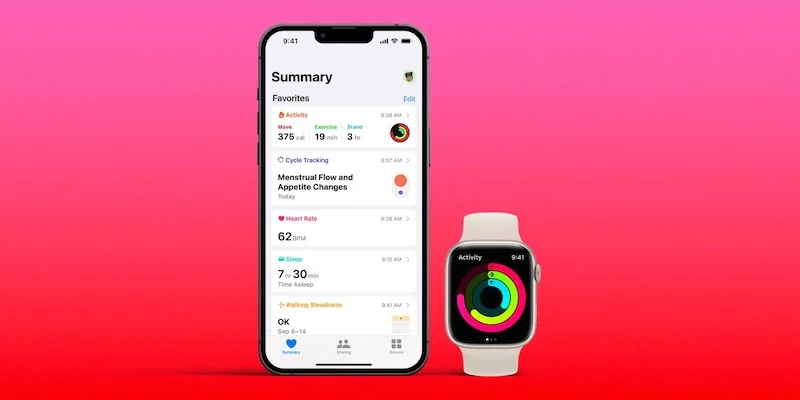
How to Sync iPhone Steps With Health Apps and Fitness Platforms (Complete Guide)

Learn why consolidating step data matters, how Apple Health works as a central hub, and step-by-step instructions for connecting your step app to see long-term progress.
Your iPhone counts steps. Your fitness app tracks workouts. Your smart scale logs weight. But if these apps do not talk to each other, you are missing the big picture.
Syncing your step data across apps gives you a complete view of your health. Here is how to make it happen.
Why Consolidating Your Step Data Matters
Scattered data across multiple apps is less useful than unified data in one place.
The Problem With Fragmented Data
When your health data lives in separate apps:
- You cannot see how steps relate to weight changes
- Trends are harder to identify
- You may have conflicting numbers
- Switching apps means losing history
- You check multiple apps instead of one
Benefits of Consolidated Data
When your data syncs to a central location:
- One place for all health metrics
- Long-term trends become visible
- Apps can use each other's data for insights
- Switching apps does not lose your history
- Easier to share with doctors or trainers
The Apple Health Advantage
Apple Health serves as a central hub for health data on iPhone:
- Built into every iPhone
- Stores data from multiple sources
- Provides unified views and trends
- Shares data with apps you authorize
- Keeps historical data even if you delete apps
Apple Health is not just an app. It is a database that stores all your health data and allows apps to read from and write to it. This makes it the ideal central hub for consolidating fitness data.
Overview of Apple Health and How Apps Use It
Understanding Apple Health helps you manage your data effectively.
What Apple Health Stores
Apple Health can store:
- Activity: Steps, distance, flights climbed, active energy
- Body measurements: Weight, height, body fat
- Vitals: Heart rate, blood pressure, respiratory rate
- Nutrition: Calories, macronutrients, water intake
- Sleep: Sleep duration, sleep stages
- Mindfulness: Meditation minutes, mindful sessions
- And more: Hundreds of data types
How Apps Interact With Health
Apps can:
Read data: Access step counts, weight, and other metrics stored in Health
Write data: Add new data points (workouts, meals, measurements)
Both: Many apps read and write, creating a two-way sync
Data Sources and Priority
When multiple apps record the same data type (like steps):
- Health stores data from all sources
- You can set source priority
- The app you prefer can be given priority
- Duplicate data is handled automatically
Privacy Controls
You control what each app can access:
- Grant or deny read access per data type
- Grant or deny write access per data type
- Review permissions anytime
- Revoke access if needed
Step-by-Step: Connecting Your Step App to Apple Health
Here is how to connect your step tracking app to Apple Health.
Step 1: Open Your Step App
Launch the step tracking app you want to connect.
Step 2: Find Health Settings
Look for settings related to:
- Apple Health
- Health app integration
- Data sync
- Permissions
This is usually in the app's Settings or Profile section.
Step 3: Enable Apple Health Integration
Tap to connect or enable Apple Health. The app will request permissions.
Step 4: Grant Permissions
When the Health access screen appears:
- Review what the app wants to read
- Review what the app wants to write
- Toggle on the permissions you want to grant
- Tap Allow or Done
Recommended permissions for step apps:
For step apps, reading permissions are essential. Writing permissions are optional since your iPhone already writes step data to Health. Only enable write if the app adds value (like manual corrections).
Step 5: Verify the Connection
After granting permissions:
- Open the Health app
- Tap your profile picture
- Tap Apps
- Find your step app in the list
- Verify permissions are correct
Step 6: Check Data Is Syncing
Walk around and check if your step app shows the same count as the Health app. They should match or be very close.

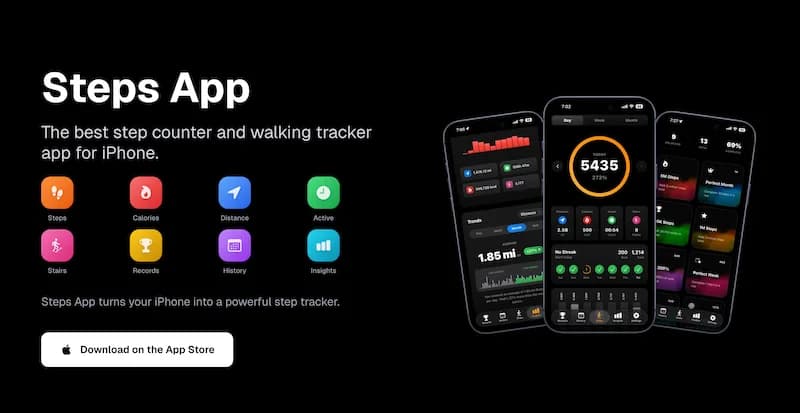
Steps App
FreeSteps App integrates seamlessly with Apple Health. Your steps, distance, calories, and floors climbed sync automatically. The app reads from Health to show your complete activity picture and updates in real-time with beautiful animated displays.
Managing Multiple Apps and Data Sources
If you use multiple fitness apps, manage them properly.
Setting Data Source Priority
If multiple apps write the same data:
- Open Health app
- Tap Browse
- Select a data type (e.g., Steps)
- Scroll down and tap Data Sources and Access
- Tap Edit
- Drag sources to set priority order
- Tap Done
The top source takes priority when displaying data.
Avoiding Duplicate Data
Apple Health handles duplicates automatically:
- Same data from same source at same time = one entry
- Different sources at same time = both stored, priority determines display
- You can manually delete duplicate entries if needed
When to Use Multiple Apps
Multiple apps can coexist:
- Primary step app: For daily tracking and motivation
- Workout app: For specific exercise sessions
- Weight app: For body measurements
- Nutrition app: For food logging
All can sync to Health, creating a complete picture.
Checking for Conflicts
If your step counts seem wrong:
- Open Health app
- Go to Steps
- Tap Show All Data
- Look for duplicate entries or conflicting sources
- Adjust source priority or delete duplicates
Using Synced Data to See Long-Term Progress
Consolidated data reveals patterns you cannot see otherwise.
Viewing Trends in Health App
Apple Health shows trends automatically:
- Open Health app
- Tap Summary
- View your health trends
- Tap any metric for details
Trends show:
- Daily, weekly, monthly, yearly averages
- Comparisons to previous periods
- Progress toward goals
Correlating Different Metrics
With synced data, you can see relationships:
- Do you walk more on days you sleep well?
- Does your weight correlate with step count?
- Do active days improve your mood?
Exporting Data for Analysis
For deeper analysis:
- Open Health app
- Tap your profile picture
- Tap Export All Health Data
- Choose export format
- Save or share the file
This creates a complete backup of all your health data.
Sharing With Healthcare Providers
Some healthcare systems can receive Health data:
- Ask your doctor if they accept Health records
- Share specific data types as needed
- Maintain control over what is shared
Be cautious about which apps you grant write access to. A poorly designed app could add incorrect data to your Health records. Only grant write access to apps you trust.
Troubleshooting Sync Issues
Common sync problems and solutions:
Data Not Appearing in Health
Possible causes:
- Permissions not granted
- App not connected to Health
- Sync delay
Solutions:
- Check app has Health permissions
- Re-enable Health integration in app settings
- Open both apps to trigger sync
- Wait a few minutes
Data Not Appearing in App
Possible causes:
- App does not have read permission
- Health has no data for that period
- App needs to be refreshed
Solutions:
- Grant read permissions in Health settings
- Verify Health has data (check Health app directly)
- Pull to refresh or restart the app
Duplicate Step Counts
Possible causes:
- Multiple apps writing same data
- App writing data that iPhone already wrote
Solutions:
- Check which apps have write permission for steps
- Disable write permission for redundant apps
- Set source priority correctly
- Delete duplicate entries manually if needed
Historical Data Missing
Possible causes:
- App only syncs recent data
- Health data was deleted
- App connected after data was recorded
Solutions:
- Check if app supports historical sync
- Verify data exists in Health app
- Some apps only sync going forward
Best Practices for Data Management
Keep your health data organized and useful.
Regular Permission Review
Periodically check which apps access your data:
- Open Settings
- Tap Privacy and Security
- Tap Health
- Review each app's permissions
- Remove access for apps you no longer use
Backup Your Data
Export your Health data periodically:
- Before major iOS updates
- Before switching phones
- Monthly or quarterly for peace of mind
Clean Up Old Apps
When you stop using an app:
- Revoke its Health permissions
- Consider deleting the app
- Your historical data remains in Health
Choose Quality Apps
Use apps that:
- Integrate properly with Health
- Have clear privacy policies
- Are actively maintained
- Have good reviews for data handling
The Bottom Line
Syncing your step data with Apple Health and other fitness platforms gives you a complete picture of your health. Apple Health serves as the central hub, storing data from all your apps and devices.
Key takeaways:
- Apple Health consolidates data from multiple sources
- Grant read permissions to apps that display your data
- Be selective with write permissions
- Set source priority to avoid conflicts
- Review permissions regularly
- Export data for backup and analysis
Connected data is more valuable than isolated data. Set up your syncs today and start seeing the complete picture of your health journey.
References
Free calculators for this topic
Related Posts
How To Use Apple Health For Accurate Step Tracking
Learn how Apple Health collects and displays steps, how to view long-term trends and averages, how to connect third-party apps, and how to improve the accuracy of Apple Health data.
How To Sync Step Data Between Your Phone And Smartwatch
Learn how to pair your smartwatch correctly, understand how step data syncing works, troubleshoot common syncing issues, and ensure consistent and accurate tracking.
Best iPhone Pedometer Apps For 2025
Discover the top free and premium pedometer apps for iPhone, explore advanced features, learn how to choose the best app for your goals, and understand why step tracking apps keep you more active.