
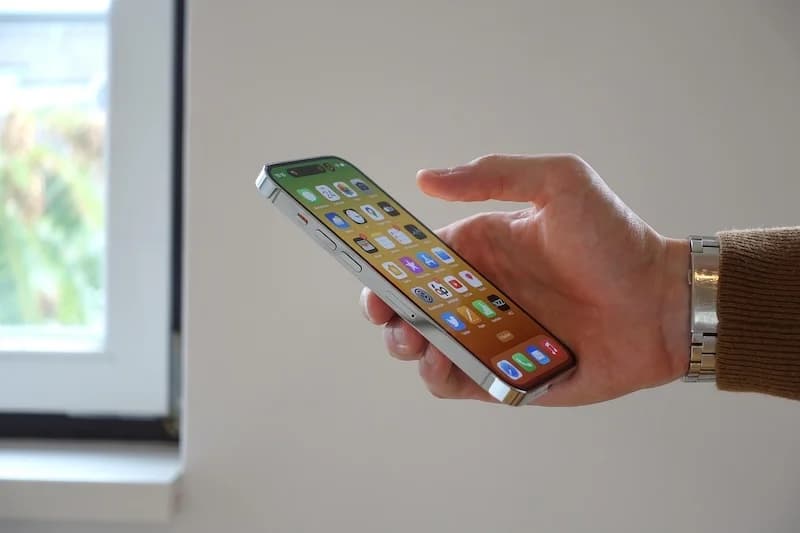
Step Counter Not Working on iPhone? Complete Troubleshooting Guide

Fix your iPhone step counter with this troubleshooting guide. Learn common reasons steps stop counting, quick fixes to try, how to test sensors, and when to contact support.
Your iPhone should count steps automatically. When it stops working, it is frustrating. But do not worry. Most step counting issues have simple solutions.
This guide will help you diagnose and fix your iPhone step counter.
Common Reasons Your Step Counter Stops Counting
Before troubleshooting, understand why step counting might fail.
Motion and Fitness Tracking Is Disabled
The most common cause is disabled motion tracking. If this setting is off, your iPhone will not count any steps.
How it happens:
- Accidentally turned off in Settings
- Disabled during privacy review
- Reset after iOS update
- Turned off by another app
Background App Refresh Is Off
Step tracking apps need to run in the background to count steps throughout the day. If background refresh is disabled, the app cannot access step data.
Low Power Mode Is Active
Low Power Mode reduces background activity to save battery. This can affect step counting accuracy and frequency.
Phone Is Not Being Carried
Your iPhone must move with your body to count steps. If it is left on a desk, in a bag that does not move, or at home, it cannot count your steps.
App Permissions Are Missing
Your step tracking app needs permission to access Health data. Without this permission, the app cannot read your step count.
Software Bugs
Occasionally, iOS updates or app updates introduce bugs that affect step counting. These are usually fixed in subsequent updates.
Most step counting issues are caused by settings being disabled. Before assuming hardware problems, check all software settings first.
Quick Fixes to Try First
Start with these simple solutions before diving deeper.
Fix 1: Check Motion and Fitness Tracking
This is the most important setting:
- Open Settings
- Tap Privacy and Security
- Tap Motion and Fitness
- Ensure Fitness Tracking is ON
If it was off, turn it on and walk around. Steps should start counting within minutes.
Fix 2: Restart Your iPhone
A simple restart fixes many issues:
- Press and hold the side button and volume button
- Slide to power off
- Wait 30 seconds
- Press the side button to turn on
After restart, walk around and check if steps are counting.
Fix 3: Check Background App Refresh
Enable background refresh for your step app:
- Open Settings
- Tap General
- Tap Background App Refresh
- Ensure it is ON globally
- Scroll to your step app and ensure it is ON
Fix 4: Disable Low Power Mode
Low Power Mode can interfere with tracking:
- Open Settings
- Tap Battery
- Turn OFF Low Power Mode
Or swipe into Control Center and tap the battery icon to toggle it off.
Fix 5: Open the Health App
Sometimes the Health app needs to be opened to refresh data:
- Open the Health app
- Tap Browse
- Tap Activity
- Tap Steps
- Check if steps are being recorded
If you see recent steps, the counting is working. Your third-party app may just need to sync.
After making any settings changes, walk at least 100 steps and then check your count. It may take a minute or two for data to appear.
Fix 6: Check App Permissions
Ensure your step app has Health permissions:
- Open Settings
- Tap Privacy and Security
- Tap Health
- Find your step app
- Ensure Steps reading permission is enabled
Fix 7: Update iOS and Apps
Outdated software can cause issues:
- Open Settings
- Tap General
- Tap Software Update
- Install any available updates
Also update your step tracking app in the App Store.
How to Test If Your iPhone Sensors Are Working
If quick fixes do not work, test your iPhone's motion sensors.
Test 1: Health App Direct Check
The Health app shows raw step data from your iPhone:
- Open Health app
- Tap Browse
- Tap Activity
- Tap Steps
- Tap Show All Data
Look for recent entries. If you see steps from today, your sensors work. If the list is empty for days, there may be a hardware issue.
Test 2: Compass App Test
The Compass app uses motion sensors:
- Open the Compass app
- Move your phone around
- The compass should respond to movement
If the compass does not respond, motion sensors may be damaged.
Test 3: Screen Rotation Test
Screen rotation uses the accelerometer:
- Ensure rotation lock is off (check Control Center)
- Open an app that supports rotation (Safari, Photos)
- Rotate your phone
- Screen should rotate with the phone
If the screen does not rotate, the accelerometer may have issues.
Test 4: Level Tool Test
The level tool in the Measure app tests sensors:
- Open the Measure app
- Tap Level at the bottom
- Place phone on a flat surface
- The level should show 0 degrees
If the level does not respond to tilting, sensors may be faulty.
If multiple sensor tests fail, your iPhone may have hardware damage. This can happen from drops, water exposure, or manufacturing defects. Contact Apple Support for diagnosis.
Test 5: Third-Party Sensor App
Download a sensor testing app from the App Store:
- Search for "sensor test" or "accelerometer"
- Download a free testing app
- Run sensor diagnostics
- Check if accelerometer and gyroscope respond
Specific Issue Troubleshooting
Here are solutions for specific problems:
Steps Counting But Number Seems Low
Possible causes:
- Phone not carried consistently
- Phone in bag that does not move with body
- Very slow walking not detected
- Holding phone still while walking
Solutions:
- Carry phone in pocket
- Ensure phone moves with your stride
- Walk at normal pace for a test
- Check if steps increase after walking
Steps Not Syncing to App
Possible causes:
- App permissions missing
- Background refresh disabled
- App needs to be opened
- Sync delay
Solutions:
- Check Health permissions for the app
- Enable background refresh
- Open the app to trigger sync
- Wait a few minutes and check again
Steps App
FreeSteps App syncs automatically with Apple Health in the background. If you are having sync issues, opening the app triggers an immediate refresh. The app shows real-time step counts with smooth animated updates.
Steps Stopped After iOS Update
Possible causes:
- Settings reset during update
- New privacy controls
- App compatibility issue
Solutions:
- Re-check all settings (Motion, Background Refresh, Permissions)
- Update your step app for iOS compatibility
- Restart your iPhone
- Wait for app developer to release fix if needed
Steps Only Count Sometimes
Possible causes:
- Intermittent sensor issue
- Low Power Mode activating
- Phone not always carried
- App crashing in background
Solutions:
- Keep phone charged above 20%
- Disable Low Power Mode
- Carry phone consistently
- Reinstall the step app
Widget Shows Wrong Count
Possible causes:
- Widget not refreshing
- Display delay
- Widget configuration issue
Solutions:
- Remove and re-add the widget
- Open the main app to refresh data
- Wait for widget to update (may take minutes)
- Check if app shows correct count
When to Contact Support or Consider Hardware Issues
Sometimes the problem is beyond software fixes.
Signs of Hardware Problems
Contact Apple Support if:
- Multiple sensor tests fail
- Phone was dropped or exposed to water
- Problem persists after factory reset
- Other motion-dependent features fail (rotation, compass)
Apple Support Options
Online support:
- Visit support.apple.com
- Use the Apple Support app
- Start a chat or schedule a call
In-person support:
- Visit an Apple Store Genius Bar
- Find an Apple Authorized Service Provider
- Bring your iPhone and explain the issue
What to Tell Support
When contacting support, mention:
- When the problem started
- What troubleshooting you have tried
- Results of sensor tests
- Any recent drops, water exposure, or damage
- iOS version and iPhone model
Warranty and Repair Options
Under warranty:
- Free diagnosis and repair for manufacturing defects
- AppleCare+ covers accidental damage (with deductible)
Out of warranty:
- Paid diagnosis and repair
- Consider cost vs. upgrading
- Third-party repair (may void future warranty)
Preventing Future Issues
Keep your step counter working with these practices:
Regular Maintenance
- Keep iOS updated
- Update apps regularly
- Restart phone weekly
- Check settings after major updates
Protect Your iPhone
- Use a protective case
- Avoid water exposure
- Do not drop your phone
- Keep away from extreme temperatures
Monitor Performance
- Check step counts periodically
- Notice if counts seem off
- Address issues early before they worsen
The Bottom Line
Most iPhone step counting issues are caused by disabled settings, not hardware problems. Start with the quick fixes: check Motion and Fitness tracking, restart your phone, and verify app permissions.
Troubleshooting checklist:
- Enable Motion and Fitness Tracking
- Restart your iPhone
- Enable Background App Refresh
- Disable Low Power Mode
- Check app Health permissions
- Update iOS and apps
- Test sensors if issues persist
- Contact Apple Support for hardware problems
Your iPhone is designed to count steps reliably. With the right settings, it will track your activity accurately.
References
Free calculators for this topic
Related Posts
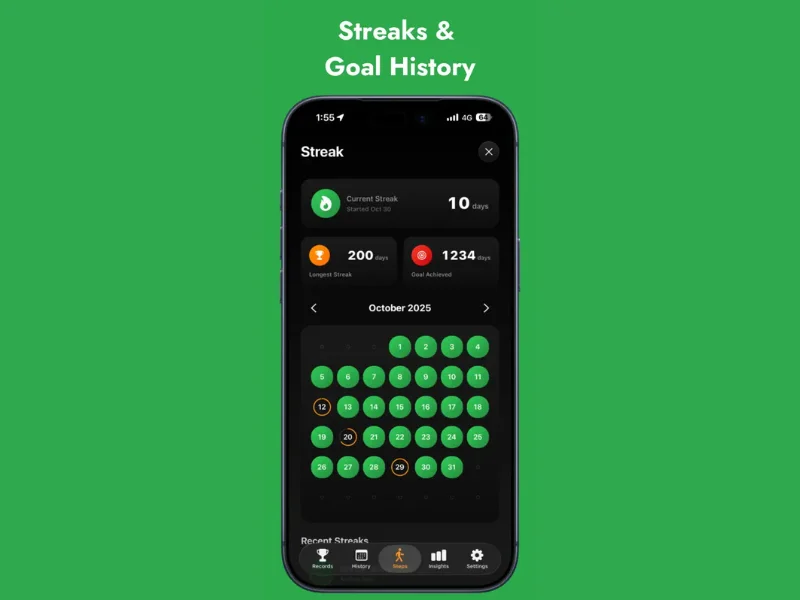
How To Set Daily Step Goals On Your Phone
Learn how to set step goals in the iPhone Health app, how to set goals in other fitness apps, how to choose realistic and safe targets, and how to monitor progress each week.

How To Count Your Steps Using An iPhone
Learn how iPhone step tracking works, how to view step data in the Health app, how to add step widgets to your home screen, and tips to improve step counting accuracy.
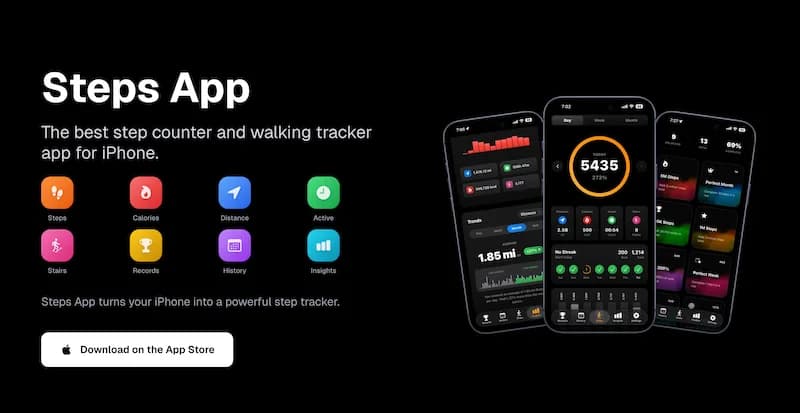
Privacy-Friendly Step Counter Apps for iPhone: Which Apps Protect Your Data?
Learn why privacy matters for health data, what to look for in privacy-respecting apps, how to review App Store privacy labels, and which apps handle your data responsibly.