
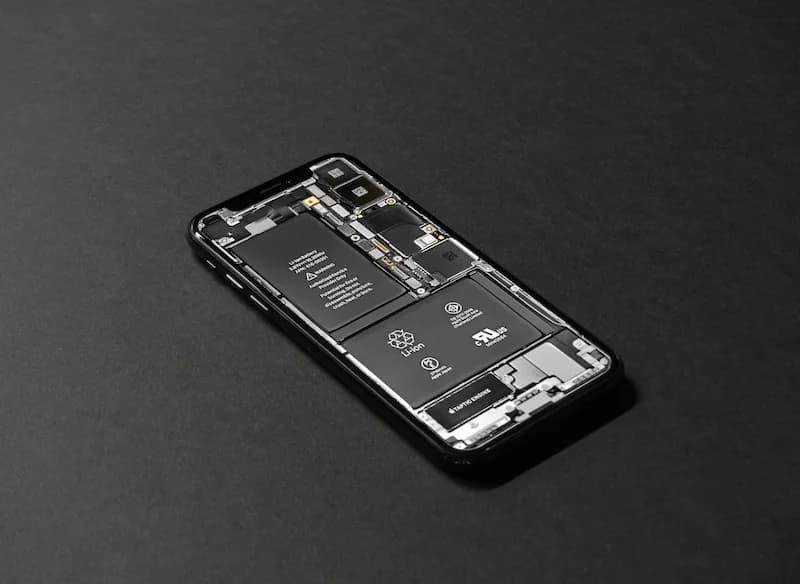
How To Save Battery While Tracking Steps

Learn how step tracking uses your phone sensors, how to optimize battery settings, which features drain the most power, and discover low power step tracking best practices.
One common concern about step tracking is battery drain. Nobody wants their phone dying by mid-afternoon just because they are counting steps. The good news is that step tracking, when done efficiently, uses very little battery. Understanding how it works helps you track steps all day without worrying about power.
Here is how to save battery while tracking your steps.
How Step Tracking Uses Your Phone Sensors
Understanding the technology helps you optimize battery use.
The Accelerometer
The primary sensor for step counting:
What it does:
- Measures acceleration in three dimensions
- Detects the up-down motion of walking
- Runs continuously in background
- Extremely low power consumption
Power characteristics:
- Uses microamps of current
- Designed for always-on operation
- Minimal impact on battery
- Hardware-level efficiency
The Motion Coprocessor
Modern phones have dedicated chips:
Apple M-series coprocessor:
- Separate from main processor
- Handles motion data continuously
- Uses tiny fraction of battery
- Processes steps without waking main CPU
Android equivalent:
- Low-power sensor hub
- Similar dedicated processing
- Efficient motion detection
- Varies by manufacturer
Apple's motion coprocessor uses so little power that it can track your steps for weeks on a single charge if the main processor stays asleep. This dedicated chip is why step tracking barely affects iPhone battery life.
GPS vs. Accelerometer
Important distinction for battery:
Accelerometer (step counting):
- Always on, very low power
- No location data
- Works indoors and outdoors
- Minimal battery impact
GPS (location tracking):
- High power consumption
- Provides route mapping
- Requires outdoor signal
- Significant battery drain
Key insight: Step counting alone uses almost no battery. GPS tracking for routes and maps uses significant battery. Many apps combine both, but you can often disable GPS.
Screen Usage
The real battery drain:
Screen impact:
- Display uses most battery
- Checking steps frequently drains battery
- Widgets reduce need to open apps
- OLED screens use less for dark themes
Practical tip: Reduce how often you check your step count. Use widgets for quick glances without opening apps.
How to Optimize Battery Settings
Configure your phone for efficient tracking.
iPhone Battery Settings
Optimize iOS for step tracking:
Background App Refresh:
- Settings > General > Background App Refresh
- Keep enabled for fitness apps
- Disable for apps you do not need
- Reduces overall battery use
Low Power Mode considerations:
- Step tracking continues in Low Power Mode
- Some app features may be limited
- Background refresh reduced
- Steps still counted accurately
Location Services:
- Settings > Privacy & Security > Location Services
- Set fitness apps to "While Using" not "Always"
- Disable location for apps that do not need it
- Reduces GPS battery drain
Android Battery Settings
Optimize Android for step tracking:
Battery optimization:
- Settings > Battery > Battery Optimization
- Exclude fitness apps from optimization
- Ensures continuous tracking
- Prevents app from being killed
Adaptive Battery:
- May limit background apps
- Add fitness apps to exceptions
- Ensures reliable step counting
Location settings:
- Settings > Location
- Use Battery Saving mode when possible
- Disable location for unnecessary apps
- Limit GPS usage
App-Specific Settings
Configure your fitness app:
Disable unnecessary features:
- Turn off GPS if not needed
- Disable continuous heart rate (if applicable)
- Reduce sync frequency
- Turn off unnecessary notifications
Enable efficient features:
- Use motion-only tracking
- Enable battery saver modes
- Use widgets instead of opening app
- Reduce data refresh frequency
Many fitness apps have a "battery saver" or "low power" mode that uses only the accelerometer for step counting. This provides accurate step counts with minimal battery impact.
Which Features Drain the Most Power
Know what uses battery so you can make smart choices.
High Battery Features
Features that drain battery quickly:
GPS/Location tracking:
- Continuous location updates
- Route mapping
- Distance via GPS
- Very high power consumption
Always-on display:
- Screen constantly lit
- Highest battery consumer
- Consider disabling or reducing
Continuous heart rate:
- Optical sensor always active
- Moderate power consumption
- Consider periodic sampling
Frequent syncing:
- Constant cloud uploads
- Bluetooth activity
- Network usage
- Moderate power consumption
Music streaming during walks:
- Network activity
- Audio processing
- Screen for controls
- Significant battery use
Low Battery Features
Features that use minimal power:
Step counting:
- Accelerometer only
- Motion coprocessor
- Very low power
- Negligible impact
Periodic heart rate:
- Samples every few minutes
- Much less than continuous
- Good balance of data and battery
Widget display:
- Updates periodically
- No screen wake required
- Very efficient
Daily sync:
- Once or twice per day
- Minimal network usage
- Low impact
Battery Impact Comparison
Relative power consumption:
Low Power Step Tracking Best Practices
Maximize battery life while tracking steps.
Choose the Right App
App choice matters:
Look for:
- Motion coprocessor support
- No required GPS
- Efficient background operation
- Good reviews for battery life
Avoid:
- Apps that require constant GPS
- Apps with excessive background activity
- Apps with poor optimization
- Apps that keep screen on

Steps App
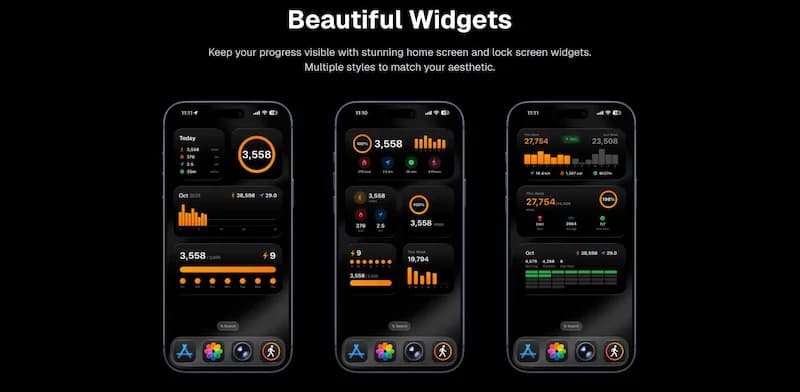
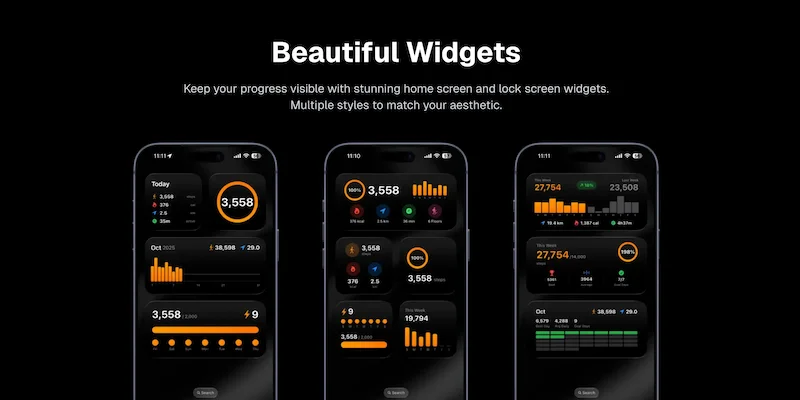
FreeSteps App is designed for battery efficiency. It uses your iPhone's motion coprocessor for automatic step counting without GPS, ensuring accurate tracking with minimal battery impact. The app works silently in the background, and beautiful widgets let you check progress without opening the app or waking your screen.
Use Widgets Wisely
Widgets save battery:
How widgets help:
- See steps without opening app
- No screen wake for app launch
- Quick glance information
- Reduces overall screen time
Widget best practices:
- Add step widget to home screen
- Use lock screen widget
- Check widget instead of opening app
- Choose simple, efficient widgets
Manage Location Services
GPS is the biggest drain:
When to use GPS:
- Mapping outdoor walks
- Tracking running routes
- When distance accuracy matters
- Occasional use only
When to skip GPS:
- Indoor walking
- Daily step tracking
- When battery is low
- When route does not matter
How to manage:
- Set to "While Using" not "Always"
- Disable when not needed
- Use accelerometer for steps
- Save GPS for special occasions
Reduce Screen Time
Screen is the biggest battery user:
Practical tips:
- Use widgets for quick checks
- Reduce check frequency
- Lower screen brightness
- Use dark mode on OLED screens
Mindset shift:
- Trust your tracking is working
- Check once or twice daily
- Focus on walking, not watching
- Review data at end of day
Optimize Sync Settings
Smart syncing saves battery:
Sync strategies:
- Sync when on Wi-Fi
- Reduce sync frequency
- Disable real-time sync
- Manual sync when needed
What to sync:
- Daily summaries sufficient for most
- Real-time not usually necessary
- Historical data syncs once
- Reduce unnecessary data transfer
Manage Notifications
Notifications wake screen:
Notification tips:
- Disable unnecessary alerts
- Use summary notifications
- Reduce frequency
- Keep only essential alerts
Useful notifications:
- Goal completion
- Daily summary
- Weekly report
- Disable mid-day updates
If your phone battery drains quickly while step tracking, the culprit is usually GPS or excessive screen usage, not the step counting itself. Check which apps are using location services and disable GPS for apps that do not need it.
Maintain Phone Health
Overall phone health affects battery:
Battery maintenance:
- Avoid extreme temperatures
- Do not let battery drain to 0%
- Avoid constant 100% charging
- Replace degraded batteries
App maintenance:
- Keep apps updated
- Remove unused apps
- Clear app cache periodically
- Restart phone weekly
When Battery Is Critical
Emergency battery saving:
Low battery strategies:
- Enable Low Power Mode
- Disable GPS completely
- Stop syncing
- Reduce screen brightness
- Steps still count in background
What still works:
- Basic step counting continues
- Motion coprocessor keeps running
- Data saves locally
- Syncs when charged
Troubleshooting Battery Drain
When step tracking seems to drain battery.
Identify the Real Culprit
Step tracking rarely causes drain:
Check battery usage:
- Settings > Battery
- Review app usage
- Look for unexpected high usage
- Identify actual drain sources
Common actual causes:
- GPS-intensive apps
- Social media apps
- Streaming apps
- Poor cellular signal
Fix Common Issues
Solutions for battery problems:
If fitness app shows high usage:
- Check if GPS is enabled
- Disable location services
- Reduce sync frequency
- Try different app
If battery drains while walking:
- Check for music streaming
- Disable GPS tracking
- Keep screen off
- Use airplane mode if possible
If background drain is high:
- Check background app refresh
- Disable for unnecessary apps
- Keep for fitness app only
- Restart phone
The Bottom Line
Step tracking uses very little battery when done correctly. The accelerometer and motion coprocessor are designed for always-on, low-power operation. Battery drain typically comes from GPS, screen usage, and frequent syncing rather than step counting itself. By choosing efficient apps, using widgets, and managing GPS wisely, you can track steps all day without worrying about battery.
Key takeaways:
- Step counting uses the low-power motion coprocessor
- GPS tracking is the main battery drain, not step counting
- Use widgets to check steps without opening apps
- Disable GPS unless you need route mapping
- Reduce screen time and sync frequency
- Choose battery-efficient apps like Steps App
- Low Power Mode still counts steps accurately
- Check Settings > Battery to identify actual drain sources
Track your steps confidently knowing your battery will last all day.
References
Free calculators for this topic
Related Posts
Battery-Friendly Ways to Track Steps on iPhone: Maximize Battery Life
Learn how step tracking affects battery, tips to reduce drain while tracking, best app settings for efficiency, and when to use GPS versus when to turn it off.
How To Use Apple Health For Accurate Step Tracking
Learn how Apple Health collects and displays steps, how to view long-term trends and averages, how to connect third-party apps, and how to improve the accuracy of Apple Health data.
How To Use And Customize The iPhone Step Widget
Learn how to add step widgets to your home screen, customize their size and appearance, read and interpret widget data, and understand how widgets help increase daily motivation.