
Battery-Friendly Ways to Track Steps on iPhone: Maximize Battery Life

Learn how step tracking affects battery, tips to reduce drain while tracking, best app settings for efficiency, and when to use GPS versus when to turn it off.
You want to track your steps, but you also want your phone to last all day. Good news: with the right settings, step tracking uses almost no battery. The key is understanding what drains power and what does not.
Here is how to track steps efficiently on your iPhone.
How Step Tracking Affects Battery Life
Not all tracking is created equal. Some methods use almost no battery, while others drain it quickly.
The Motion Coprocessor Advantage
Your iPhone has a dedicated chip for motion tracking called the motion coprocessor (M-series chip). This chip:
- Runs independently from the main processor
- Uses minimal power (designed for always-on operation)
- Continuously processes accelerometer data
- Counts steps without waking the main CPU
Because of this chip, basic step counting is extremely efficient.
What Uses Battery
Different tracking features have different battery impacts:
Typical Battery Usage
With proper settings:
- Step counting only: Less than 1% battery per day
- Step counting + widgets: 1-2% battery per day
- Step counting + occasional GPS: 3-5% per day
- Constant GPS tracking: 10-20% per day
The difference between efficient and inefficient tracking can be 15%+ of your daily battery.
Your iPhone is designed to count steps efficiently. The motion coprocessor runs 24/7 with negligible battery impact. It is the additional features (especially GPS) that drain battery.
Tips to Reduce Battery Drain While Tracking Steps
Follow these tips to maximize battery life while still tracking your activity.
Tip 1: Disable GPS for Step Counting
GPS is the biggest battery drain. For step counting, you do not need it.
How to disable:
- Open Settings
- Tap Privacy and Security
- Tap Location Services
- Find your step app
- Set to Never or While Using the App
Never is best for step counting. GPS is only needed for route mapping.
Tip 2: Use Widgets Instead of Opening the App
Widgets update periodically without running the full app:
- Lower CPU usage
- Less screen time
- Background updates are efficient
- Glanceable without unlocking
Add a step widget to your home screen and check it instead of opening the app.
Tip 3: Reduce Notification Frequency
Each notification wakes your screen and uses battery:
- Disable hourly step updates
- Keep only essential notifications (goal achieved)
- Turn off social notifications
- Limit reminders to once or twice daily
Tip 4: Avoid Always-On Location
Some apps request "Always" location access. For step counting, this is unnecessary:
- "Always" keeps GPS active in background
- Significant battery drain
- Only needed for automatic route tracking
- "While Using" or "Never" is sufficient for steps
If a step app requests "Always" location access, question whether it is necessary. Basic step counting does not require GPS at all. Only grant "Always" if you specifically need automatic route recording.
Tip 5: Disable Background App Refresh for Unnecessary Apps
Background refresh uses battery. Enable it only for apps that need it:
- Open Settings
- Tap General
- Tap Background App Refresh
- Keep enabled for your step app
- Disable for apps you do not need updating in background
Tip 6: Use Dark Mode
If your iPhone has an OLED display (iPhone X and later):
- Dark pixels use less power
- Dark mode reduces battery usage
- Choose apps with dark themes
- Enable system-wide dark mode
Tip 7: Reduce Screen Brightness
When checking your step widget or app:
- Lower brightness saves battery
- Use auto-brightness
- Avoid maximum brightness unless necessary
Best App Settings for Battery-Efficient Tracking
Configure your step app for maximum efficiency.
Location Settings
Recommended: Never or While Using the App
- Never: No GPS, steps only (most efficient)
- While Using: GPS only when app is open
- Always: Avoid unless you need automatic route tracking
Notification Settings
Recommended configuration:
Sync Settings
Recommended:
- Enable background sync (efficient)
- Disable constant sync (battery drain)
- Let app sync when opened
- Use widgets for frequent checks
Display Settings
Recommended:
- Use dark mode if available
- Disable always-on features
- Reduce animation if option exists

Steps App
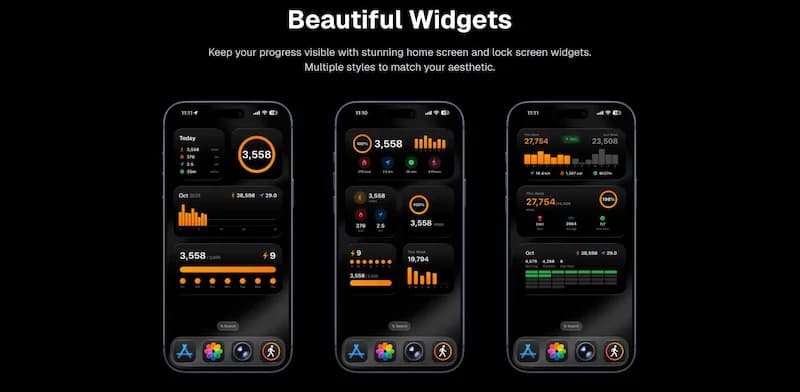
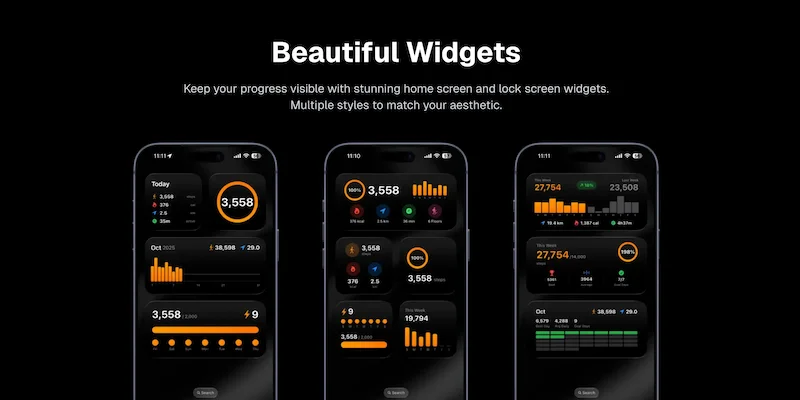
FreeSteps App is designed for battery efficiency. It uses Apple's motion coprocessor for step counting, requires no GPS for basic tracking, and syncs with Apple Health in the background. Beautiful widgets show your progress without draining battery.
When to Use GPS (And When to Turn It Off)
GPS has its place, but use it strategically.
When GPS Adds Value
Route mapping: If you want to see where you walked on a map, GPS is required.
Exploring new areas: GPS helps you navigate and track new routes.
Training for events: Accurate distance for race training may require GPS.
Sharing routes: If you want to share your walking route, GPS creates the data.
When to Turn GPS Off
Daily step counting: Steps are counted by accelerometer, not GPS.
Indoor walking: GPS does not work indoors anyway.
Known routes: If you walk the same path daily, you do not need to map it each time.
Battery conservation: When battery life is priority, disable GPS.
Strategic GPS Use
Use GPS selectively:
- Daily tracking: GPS off
- Special walks: GPS on for that walk only
- Weekly route: Enable GPS once per week to map your route
This gives you route data occasionally without constant battery drain.
How to Enable GPS Only When Needed
Option 1: App settings Some apps let you toggle GPS per walk. Enable it before a walk you want to map.
Option 2: Location permissions Set to "While Using the App" and only open the app when you want GPS tracking.
Option 3: Separate GPS app Use your step app for daily counting (no GPS) and a separate app for occasional route mapping.
Monitoring Battery Usage
Check which apps are using your battery.
How to Check Battery Usage
- Open Settings
- Tap Battery
- Scroll down to see battery usage by app
- Tap Show Activity for more detail
What to Look For
Healthy step app usage:
- 1-3% of battery
- Most usage is "Background Activity"
- Minimal "Screen On" time
Concerning step app usage:
- More than 5% of battery
- High "Screen On" time
- Significant background activity
If Your Step App Uses Too Much Battery
- Check location settings (disable GPS)
- Reduce notifications
- Use widgets instead of opening app
- Check for app updates (may fix bugs)
- Consider switching apps if problem persists
If your step app is using more than 3-5% of your daily battery, something is wrong. Check location settings first, as GPS is usually the culprit.
Low Power Mode and Step Tracking
Understand how Low Power Mode affects tracking.
What Low Power Mode Does
When enabled, Low Power Mode:
- Reduces background activity
- Decreases screen brightness
- Limits some visual effects
- May delay background sync
Impact on Step Tracking
Step counting: Usually continues normally (motion coprocessor runs independently)
Background sync: May be delayed
Widgets: May update less frequently
Notifications: May be delayed
Recommendations
- Step counting works in Low Power Mode
- Expect slightly delayed data sync
- Open app occasionally to force sync
- Disable Low Power Mode if you need real-time updates
Battery-Saving Checklist
Use this checklist to optimize your setup:
Location settings:
- Step app location set to "Never" or "While Using"
- No apps with unnecessary "Always" location access
Notification settings:
- Hourly notifications disabled
- Only essential notifications enabled
- Reminders limited to 1-2 per day
App settings:
- Background sync enabled (efficient)
- Dark mode enabled if available
- GPS features disabled unless needed
General settings:
- Background App Refresh enabled for step app only
- Auto-brightness enabled
- Dark mode enabled system-wide (OLED screens)
Usage habits:
- Using widgets instead of opening app frequently
- GPS enabled only for specific walks
- Checking battery usage periodically
The Bottom Line
Step tracking on iPhone is designed to be battery-efficient. The motion coprocessor counts steps with negligible power usage. Battery problems come from GPS, excessive notifications, and inefficient app design.
Key takeaways:
- Basic step counting uses less than 1% battery per day
- GPS is the biggest battery drain (disable for step counting)
- Use widgets instead of opening the app frequently
- Reduce notifications to essential ones only
- Monitor battery usage and adjust if needed
- Choose apps designed for efficiency
With the right settings, you can track steps all day without worrying about battery life.
References
Free calculators for this topic
Related Posts
How To Save Battery While Tracking Steps
Learn how step tracking uses your phone sensors, how to optimize battery settings, which features drain the most power, and discover low power step tracking best practices.
How To Use Apple Health For Accurate Step Tracking
Learn how Apple Health collects and displays steps, how to view long-term trends and averages, how to connect third-party apps, and how to improve the accuracy of Apple Health data.
How To Use And Customize The iPhone Step Widget
Learn how to add step widgets to your home screen, customize their size and appearance, read and interpret widget data, and understand how widgets help increase daily motivation.