
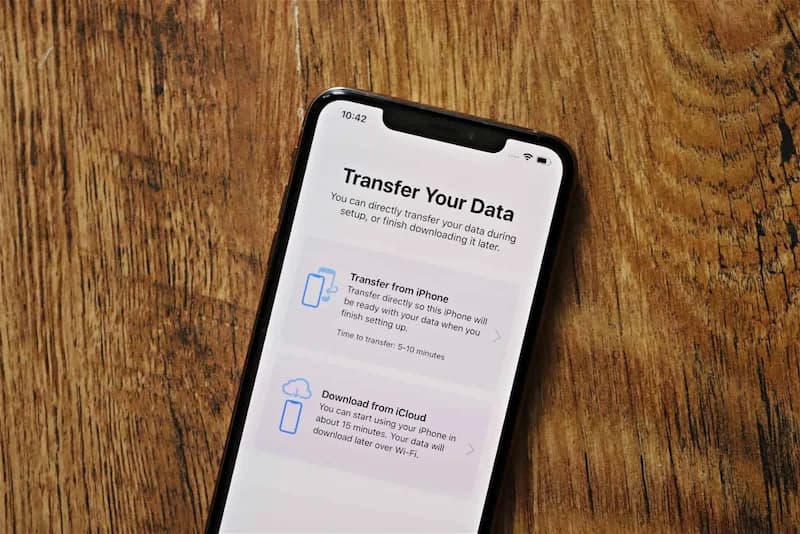
How to Export Step Data From iPhone: Track Progress and Analyze Trends

Learn why you might want to export your step history, different ways to export from Apple Health or step apps, ideas for analyzing your data, and how to use insights to set new goals.
Your iPhone has been counting your steps for months or years. That data tells a story about your activity patterns, progress, and health. Exporting it lets you analyze trends, create backups, and gain insights you cannot see in the app.
Here is how to export your step data and what to do with it.
Why You Might Want to Export Your Step History
There are several good reasons to export your step data.
Create a Backup
Your step history is valuable. Exporting creates a backup in case:
- You switch to a new iPhone
- An app update causes data loss
- You accidentally delete the Health app data
- You want to preserve your history long-term
Analyze Long-Term Trends
Apps show limited history. Exported data lets you:
- See patterns over months or years
- Identify seasonal variations
- Track long-term progress
- Create custom visualizations
Share With Healthcare Providers
Some situations require sharing your activity data:
- Doctor appointments
- Physical therapy progress
- Insurance wellness programs
- Research studies
Switch Apps Without Losing History
If you change step tracking apps:
- Export from your current app
- Import to your new app (if supported)
- Or keep the export as a historical record
Personal Analytics
If you enjoy data analysis:
- Create spreadsheets and charts
- Correlate steps with other data (weight, mood, sleep)
- Build custom dashboards
- Track against personal benchmarks
Your step data is yours. Apple Health makes it easy to export, and you can do whatever you want with the exported file.
Ways to Export Steps From Apple Health or Step Apps
There are several methods to get your data out.
Method 1: Export All Health Data From Apple Health
This exports everything in your Health app, including steps.
How to export:
- Open the Health app
- Tap your profile picture (top right)
- Scroll down and tap Export All Health Data
- Tap Export to confirm
- Wait for the export to complete (may take minutes for large datasets)
- Choose where to save or share the file
What you get:
- A ZIP file containing XML data
- All health data types (steps, heart rate, weight, etc.)
- Complete history from all sources
- Large file size (potentially hundreds of MB)
Best for:
- Complete backup
- Switching phones
- Long-term archival
Method 2: Export Specific Data From Health App
For just step data without everything else:
- Open Health app
- Tap Browse
- Tap Activity
- Tap Steps
- Scroll down and tap Show All Data
- Tap Export (if available in your iOS version)
Note: This option may not be available in all iOS versions. The full export (Method 1) is always available.
Method 3: Export From Your Step Tracking App
Many step apps offer their own export features:
- Open your step tracking app
- Look for Settings or Profile
- Find Export, Backup, or Data options
- Choose export format (CSV, PDF, etc.)
- Save or share the file
Common export formats:
- CSV: Spreadsheet-compatible, best for analysis
- PDF: Visual report, good for sharing
- JSON: Technical format, good for developers
Method 4: Use Third-Party Export Apps
Several apps specialize in Health data export:
- Search App Store for "Health export" or "Health data export"
- These apps can create more user-friendly exports
- Often provide CSV or Excel formats
- May offer better filtering options
For analysis in spreadsheets, CSV format is best. For sharing with others who just want to see your progress, PDF reports are more readable.
Method 5: Screenshots and Manual Recording
For simple needs:
- Take screenshots of your step history
- Manually record weekly or monthly totals
- Create a simple spreadsheet over time
This is less comprehensive but requires no technical knowledge.
Understanding Exported Data
Once you have exported your data, here is how to work with it.
Apple Health Export Format
The Health app exports data as XML in a ZIP file:
- Unzip the file
- Open the
export.xmlfile - Search for step data entries
The XML format is technical but contains:
- Date and time of each entry
- Step count
- Source (iPhone, Apple Watch, app name)
- Data type identifiers
Converting to Spreadsheet Format
To analyze in Excel or Google Sheets:
Option 1: Use a converter tool
- Search for "Apple Health XML to CSV converter"
- Upload your export file
- Download the converted CSV
Option 2: Use a third-party app
- Apps like QS Access or Health Export can create CSVs directly
Option 3: Manual extraction
- Open XML in a text editor
- Copy relevant data
- Paste into spreadsheet
CSV Format Structure
A typical step data CSV includes:
This format is easy to work with in any spreadsheet application.

Steps App
FreeSteps App syncs with Apple Health, so your step data is always available for export through the Health app. The app provides beautiful in-app visualizations of your daily, weekly, and monthly trends, and your data remains exportable through Apple's standard Health export.
Ideas for Analyzing Your Step Data
Once you have your data in a spreadsheet, here are analysis ideas.
Calculate Averages
Daily average: Sum all steps / Number of days
Weekly average: Sum of week's steps / 7
Monthly average: Sum of month's steps / Days in month
Identify Patterns
Day of week analysis:
- Which days do you walk most?
- Are weekends more or less active?
- Is there a consistent low day?
Time of year analysis:
- Summer vs winter activity
- Holiday period changes
- Seasonal trends
Track Progress Over Time
Month-over-month comparison:
- Is your average increasing?
- Are you more consistent?
- How does this month compare to last year?
Goal achievement rate:
- What percentage of days did you hit your goal?
- Is this improving over time?
Create Visualizations
Line chart: Daily steps over time Bar chart: Weekly or monthly totals Calendar heat map: Color-coded by step count Histogram: Distribution of daily step counts
Correlate With Other Data
If you export other health data:
- Steps vs weight changes
- Steps vs sleep quality
- Steps vs mood (if tracked)
- Steps vs weather (add external data)
Be careful about drawing causal conclusions from correlations. Just because two things happen together does not mean one causes the other.
How to Use Insights From Exports to Set New Goals
Your exported data can inform better goal setting.
Finding Your True Baseline
Look at your historical data:
- What is your average over the past 3 months?
- What is your average over the past year?
- Has your activity level changed over time?
This gives you a more accurate baseline than a single week.
Identifying Your Range
From your data, find:
- Your highest step day
- Your lowest step day
- Your typical range
Understanding your range helps set realistic goals.
Setting Data-Driven Goals
Based on your history:
- If your average is 6,000, aim for 7,000
- If you hit 8,000+ on weekends, aim for that daily
- If you have never hit 10,000, do not start there
Based on your success rate:
- If you hit your current goal 90% of days, increase it
- If you hit it 50% of days, it might be too high
- Aim for 70-80% success rate
Tracking Goal Progress
After setting a new goal, export data again in 4-8 weeks:
- Compare new average to old average
- Check your success rate
- Adjust goal if needed
Creating Accountability
Share your exported data:
- With a friend or accountability partner
- With a coach or trainer
- In a fitness community
External accountability increases follow-through.
Protecting Your Exported Data
Your step data is personal. Protect it appropriately.
Storage Security
- Store exports in a secure location
- Use encrypted storage if available
- Delete exports you no longer need
- Be careful about cloud storage
Sharing Caution
- Only share with trusted parties
- Remove identifying information if sharing publicly
- Be aware that step data reveals your routines
Data Retention
Decide how long to keep exports:
- Delete old exports after analysis
- Keep one annual backup
- Or keep everything if storage is not an issue
The Bottom Line
Exporting your step data gives you control over your health information. You can create backups, analyze long-term trends, share with healthcare providers, and use insights to set better goals.
Key takeaways:
- Apple Health allows complete export of all health data
- Convert XML to CSV for spreadsheet analysis
- Look for patterns in days, weeks, and seasons
- Use historical data to set realistic goals
- Protect your exported data appropriately
- Re-export periodically to track progress
Your step history is a record of your health journey. Export it, analyze it, and use it to walk further.
References
Free calculators for this topic
Related Posts

How To Use Apple Health For Accurate Step Tracking
Learn how Apple Health collects and displays steps, how to view long-term trends and averages, how to connect third-party apps, and how to improve the accuracy of Apple Health data.

How To Save Battery While Tracking Steps
Learn how step tracking uses your phone sensors, how to optimize battery settings, which features drain the most power, and discover low power step tracking best practices.
How To Set Daily Step Goals On Your Phone
Learn how to set step goals in the iPhone Health app, how to set goals in other fitness apps, how to choose realistic and safe targets, and how to monitor progress each week.