

Best Way to Track Steps During Indoor Walking: Accuracy and Tips

Learn why indoor walking can confuse step trackers, how to position your phone for better counts, special considerations for treadmills, and how to validate your routine.
Indoor walking is a great option when weather is bad, you want privacy, or you prefer the convenience of walking at home. But tracking steps indoors can be tricky. Your phone or tracker may count differently than when you walk outside.
Here is how to get accurate step counts during indoor walking.
Why Indoor Walking Can Confuse Some Trackers
Indoor walking presents unique challenges for step counting technology.
The GPS Problem
Many fitness trackers and apps rely on GPS to verify movement. Indoors:
- GPS signal is weak or nonexistent
- Your phone cannot confirm you are actually moving
- Some apps may undercount or not count at all
- Distance calculations become estimates only
This is why step-based tracking (using accelerometers) is essential for indoor walking.
Shorter Stride Patterns
When walking indoors, your stride often changes:
- Smaller spaces mean more turns
- You may walk more slowly
- Stride length decreases in tight areas
- Frequent direction changes disrupt rhythm
Trackers calibrated for outdoor walking may not accurately detect these modified patterns.
Surface Differences
Indoor surfaces affect how your movement is detected:
- Carpet absorbs impact (softer motion)
- Hard floors create sharper movements
- Treadmill belts have unique motion patterns
- Stairs involve different step detection
Your tracker may count differently on various surfaces.
The accelerometer in your iPhone detects the up-and-down motion of walking. As long as your phone moves with your body, it will count steps regardless of whether you are indoors or outdoors.
Stationary Walking Challenges
Walking in place or on a treadmill can confuse some trackers:
- Your body moves but you do not travel anywhere
- GPS shows no movement
- Some apps filter out "non-locomotion"
- Arm swing may be different than normal walking
Understanding these challenges helps you optimize your setup for accurate counting.
How to Position Your Phone for Better Indoor Step Counts
Where and how you carry your phone significantly affects indoor step accuracy.
Best Positions for Indoor Walking
Front pants pocket:
- Moves with your stride
- Consistent motion detection
- Works for walking in place and treadmill
Armband:
- Captures arm swing motion
- Good for treadmill walking
- Keeps phone secure during movement
Hand (while walking):
- Natural arm swing registers steps
- May overcount if you swing arms excessively
- Good for short indoor walks
Waist clip or belt:
- Close to center of motion
- Consistent readings
- Works well for all indoor walking types
Positions to Avoid
Stationary surfaces:
- Do not leave phone on treadmill console
- Do not set phone on table while walking in place
- Phone must move with your body
Loose bags:
- Bags that swing independently may give inconsistent counts
- Phone may not experience your walking motion
Very padded cases:
- Excessive padding may dampen motion
- Standard cases are fine
For treadmill walking, an armband or front pocket works best. The phone needs to experience your walking motion, not just sit on the treadmill.
Consistency Is Key
Whatever position you choose:
- Use the same position every time
- Your phone learns your movement patterns
- Consistent positioning improves accuracy over time
Special Considerations for Treadmill Walking
Treadmill walking requires specific strategies for accurate tracking.
Why Treadmills Are Tricky
Treadmills present unique tracking challenges:
- You walk but do not travel anywhere
- GPS shows zero movement
- Holding handrails changes your gait
- Belt speed may not match your actual stride
Optimizing Treadmill Step Counting
Do not hold the handrails:
- Holding rails reduces arm swing
- Your phone detects less motion
- Steps may be undercounted
- Only use rails for balance if needed
Let your arms swing naturally:
- Natural arm swing helps detection
- Phone in pocket or armband moves more
- More accurate step counting
Match your stride to the belt:
- Walk naturally, not fighting the belt
- Consistent stride improves accuracy
- Avoid shuffling or unnatural gait
Use incline strategically:
- Incline changes your stride
- May affect step count slightly
- Consistent incline settings help
Comparing Treadmill Count to Phone Count
Your treadmill and phone may show different step counts:
Neither is perfectly accurate. For consistency:
- Choose one source to track
- Use the same source every session
- Focus on trends, not exact numbers

Steps App
FreeSteps App uses your iPhone's motion sensors to count steps accurately, even on treadmills. The app works independently of GPS, so your indoor walking counts just like outdoor walking. Track your treadmill sessions alongside all your other daily steps.
Treadmill Best Practices Summary
- Carry phone in pocket or armband
- Do not leave phone on treadmill console
- Let arms swing naturally
- Avoid holding handrails
- Walk at a consistent pace
- Use the same tracking method each session
Using Insights to Validate Your Indoor Walking Routine
Tracking data helps you ensure your indoor walking is effective.
Comparing Indoor vs Outdoor Counts
Track a known distance both indoors and outdoors:
- Walk 1 mile outdoors (use GPS to verify)
- Note your step count
- Walk equivalent time on treadmill at same pace
- Compare step counts
If counts are significantly different, adjust your expectations or carrying position.
Validating Step Accuracy
To check if your indoor counts are reasonable:
Manual count test:
- Walk 100 steps while counting manually
- Check your phone's count
- Calculate accuracy percentage
- Repeat in different locations
Expected results:
- 95-100% accuracy: Excellent
- 90-95% accuracy: Good
- 85-90% accuracy: Acceptable
- Below 85%: Adjust phone position
Tracking Patterns Over Time
Use your step data to understand your indoor walking:
- Which days do you walk indoors vs outdoors?
- Is your indoor step count consistent session to session?
- How does indoor walking affect your daily totals?
- Are you meeting your goals with indoor walking?
If your indoor step counts seem significantly lower than expected, check your phone position and ensure the phone is moving with your body. A phone left on a surface will not count your steps.
Setting Indoor Walking Goals
Based on your validation data, set realistic indoor goals:
If indoor counts 10% lower than outdoor:
- Adjust your time goal upward by 10%
- Or accept slightly lower counts
- Focus on consistency
If indoor counts match outdoor:
- Use the same goals for both
- Track all walking together
- No adjustment needed
Indoor Walking Workout Ideas
Here are effective indoor walking routines:
Walking in Place
Duration: 10-30 minutes Steps per minute: 80-120 Tips:
- Lift knees higher for more intensity
- Swing arms naturally
- March to music for motivation
- Keep phone in pocket
Treadmill Walking
Duration: 20-45 minutes Speed: 2.5-4.0 mph Tips:
- Start slow, increase gradually
- Use incline for variety
- Do not hold handrails
- Phone in pocket or armband
Indoor Circuit
Duration: 20-30 minutes Format: Walk through your home in a circuit Tips:
- Include stairs if available
- Vary your route
- Add arm movements
- Keep phone with you
Mall Walking
Duration: 30-60 minutes Location: Indoor shopping mall Tips:
- Arrive when mall opens (less crowded)
- Walk the perimeter of each floor
- Use stairs between floors
- Phone in pocket works well
Troubleshooting Indoor Step Counting
Common issues and solutions:
Steps Not Counting
Possible causes:
- Phone left on surface
- Motion tracking disabled
- App not running
Solutions:
- Carry phone with you
- Check Settings > Privacy > Motion and Fitness
- Open step app before walking
Count Seems Too Low
Possible causes:
- Holding treadmill rails
- Phone in loose bag
- Very slow walking pace
Solutions:
- Let arms swing freely
- Move phone to pocket
- Increase walking pace slightly
Count Seems Too High
Possible causes:
- Excessive arm movement
- Bouncy walking style
- Phone swinging in hand
Solutions:
- Walk more naturally
- Secure phone in pocket
- Reduce unnecessary movement
Inconsistent Counts
Possible causes:
- Changing phone position
- Variable walking pace
- Different surfaces
Solutions:
- Use same phone position
- Walk at consistent pace
- Track on same surface
The Bottom Line
Indoor walking is an effective way to stay active, and your iPhone can accurately track your steps with proper setup. The key is ensuring your phone moves with your body and using accelerometer-based tracking rather than relying on GPS.
Key takeaways:
- Indoor walking challenges GPS-based tracking
- Accelerometer-based step counting works indoors
- Carry your phone in a pocket or armband
- Do not hold treadmill handrails
- Validate your counts with manual testing
- Focus on consistency, not perfect accuracy
Whether you are walking in place, on a treadmill, or around your home, your steps count toward your daily goal.
References
Free calculators for this topic
Related Posts
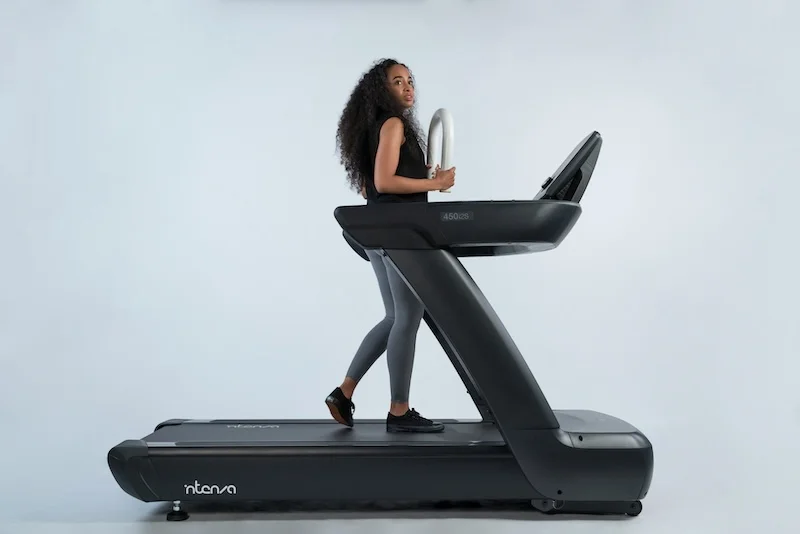
Tracking Steps On A Treadmill Vs Outdoors
Understand why treadmills often count steps differently, how phone placement affects treadmill accuracy, how to calibrate indoor walking distance, and when to rely on treadmill numbers vs phone data.
How To Use Apple Health For Accurate Step Tracking
Learn how Apple Health collects and displays steps, how to view long-term trends and averages, how to connect third-party apps, and how to improve the accuracy of Apple Health data.
How To Save Battery While Tracking Steps
Learn how step tracking uses your phone sensors, how to optimize battery settings, which features drain the most power, and discover low power step tracking best practices.